Programming Languages
Significance of Color Scheme in Website Design -

Colors play an important role in human lives. Unlike animals, we see and interpret colors of different hues, shades, tints and spectrum. Emotions are attached to different colors ; phrases have been coined around them. Sample a few: Seeing Red, Going Green With Envy, Having The Blues, In The Pink Of Health, Green Thumb.
Since we are surrounded by colors in real life, it is but logical that it make the transition to the virtual world.

Computer Training Excuses -

You wouldn't go to a doctor who had never been to medical school, or hire a lawyer who never studied law. One side-effect of a world advancing as rapidly as ours is that fields are becoming more and more specialized and narrow. People can no longer get by on general knowledge in their careers, something I found out for myself not too long ago. I'd been out of high school for two years, scraping by on my own and picking up scraps of programming as I went. I saw all of the self-taught programmers breaking into the IT industry, and I hoped to do the same. After all, IT is one of the few industries out there where being creative and a quick learner is more important than a degree.
How to Install WordPress - Part II -
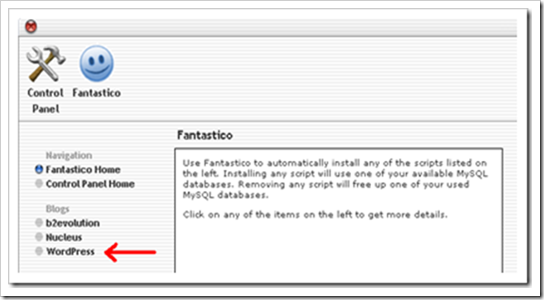
...This page is called a
WordPress Dashboard. Get to know this part because you will be using it a lot. That is the matrix of your Web page.
All changes on your Web page will go through the Dashboard.
Introduction to HTML - Part II -
.jpg)
Yesterday we brought you the first part of the free tutorial "
Introduction to HTML", and you can
read it here. Today you have a chance to read the final part of this free HTML introduction tutorial. Tables have been used before to make the structure of the page, which is outdated and is not valid by HTML standards, but tables are still used for the tabular display of a text.
Introduction to HTML -
HTML (Hyper Text Markup Language) is a basic language that is used for defining web pages and consists of elements (marked with tags) and the content. HTML is not a program language. HTML documents are accessed using browsers like Mozilla Firefox, Google Chrome, Safari etc. For creating HTML documents you can use any text editor like for example Notepad, but it's recommended a more advanced program (Notepad++, Dreamweaver, NetBeans, Coda, etc.)
Which is the Easiest Programming Language? -

If you have some misconception in mind that the programming languages are easy or hard, I am afraid to say that you are mistaken. To tell you frankly about the programming languages, there is nothing such as easy or tough programming language. The only thing that you need to keep in mind while stepping into the world of programming languages is that which programming language would set your base by giving you in-depth knowledge of programming logics and the basics of programming techniques.
HTML5 - The Future of Programming -
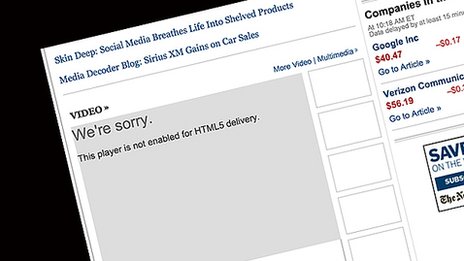
Programmers of Web apps like Kevin Sweeney, that works on a famous video sharing site called Vimeo with its headquarters in New York, already accepted these new tools that have been built in
HTML5. "We were forced to rely on external add-ons like
Adobe Flash or
Quick Time, that we had to build in on our web pages. The thing that will be accomplished by the use of
HTML5 is their removal from the code so that these things are directly supported", says he.
How to Install WordPress -
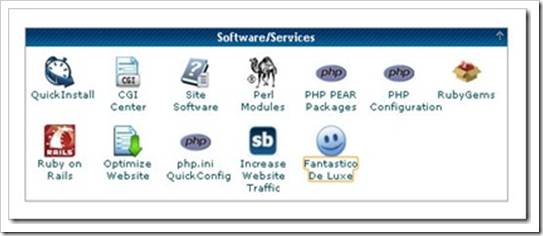 WordPress is the most popular blogging platform
 and content managing system
(CMS, Content Management System). It is an open source platform that offers a lot to adjust.
WordPress is a free platform mostly used by blogger.
Google Web Fonts to Your Website -
 If you're like myself, you would easily come to a realization that web compatible fonts are down-right dull for content and even more so for content headlines. People have come up with many ingenious ways to counter this problem. However, each of these methods has its downside. Remember the most important aspect of Google Web Fonts; they not only look good, but they are just fonts to the search engines that spider your website.
One for All; All For None -

As always, M!cro$#!t was there to help us with their awesome and almost God-like helping hand by creating Page Transitions feature in their (then latest) MS FrontPage. And other software manufacturers followed MS like a pack of sheep trying to stay tight in a herd.
Entering into Programming World -

Once you have learned some programming languages, you feel yourself completely prepared to enter into the programming world, and start working on the programming languages that you have learned. Many students also feel that they have learned extra things which might be helpful in their programming careers. The matter of fact is that the real world is entirely different from what you have been taught in the classrooms.
Your First Web Page -

This article will get you going in creating your first webpage solely created by HTML. All you need in a "NOTEPAD" program.
HTML5 - Setting New Standards in Hypertext -
HTML5 is the latest buzz word in
web development world. It comes with a lot of cool, new features and most importantly it aims at bringing consistency to the whole process of
web development. The code is much cleaner, neater and standardized. For example, web
software developers can replace the div tags with neat HTML5 elements. This also means that web developers across the board can read and understand code better even if they know nothing about the language because of the standardization. This also ensures that
web developers building new
hosted web applications can understand the features better and integrate well with it. The overall semantics would improve because of the new HTML elements and it would be easy to see the structure of the code and determine the header, footer, navigators etc.
Why Programmers Love the Night -

One famous saying says that programmers are machines that turn caffeine from coffee and Coca Cola into a programming code. And if you
ask a programmer when does he like working the most and when is he most productive - he is probably going to say late at night or early in the morning, that is when he has the greatest energy and concentration to work.
HTML5 - The Future of Programming (Part 2) -
 HTML5 is partially responsible for the war between search engines
 in the last few years. A decade before Chrome, Firefox and Safari they didn't exist while the updating and improving of Internet Explorer was rare. Today desktop and mobile search engines are updated very often following the appearance of the new HTML5 functions.
How to be a Programmer -

To be a good programmer is difficult and noble. The hardest part of making real a collective vision of a software project is dealing with one's coworkers and customers. Writing computer programs is important and takes great intelligence and skill. But it is really child's play compared to everything else that a good programmer must do to make a software system that succeeds for both the customer and myriad colleagues for whom she is partially responsible. In this essay I attempt to summarize as concisely as possible those things that I wish someone had explained to me when I was twenty-one.
How to Deal With Stresses & Anxieties in Today's Computer Industry -

Sometimes, we get stressed when everything happens all at once. When this happens, a person should take a deep breath and try to find something to do for a few minutes to get their mind off of the problem. A person could take a walk, listen to some music, read the newspaper or do an activity that will give them a fresh perspective on things.
Favorites Icon (favicon.ico) -
A Favicon is a multi-resolution image included on nearly all professional developed sites. The Favicon allows the webmaster to further promote their site, and to create a more customized appearance within a visitor's browser. Often, the Favicon reflects the look and feel of the web site or the organizations logo.
QupZilla Web Browser -

This very fast QtWebKit Internet Browser has the goal of being light and available on all dominant platforms. The project was started for educational purposes, but today it has grown into a quality program. Considering that it is still young, QupZilla can't be found in the GNU/Linux distribution treasury.
TW Tech Glossary - Misplaced your bible? Well here it is - Tech Glosasary! This truly took a while to complete and should be used by all from beginners to advance techies.
CSS Tutorial -
This is one of the better CSS tutorials on the net. Not because it is very lengthy but because it gets right down to the point of the matter. It's for those who are beginning CSS and for those who know but want to brush up on their skills. Take a look, learn, and teach! CSS is a set of page markup definitions that can be applied to HTML documents to define how pages are rendered. This addition to the HTML tag set can be applied by Authors internally in each HTML document or they can reside in a separate server side file that is referenced and applied to the document.
WikiLeaks, The Technical Aspect -

Wikileaks has been in the news for quite some time now as it has rocked many nations, embroiling itself in controversy over the fact that it has been releasing classified documents which have been termed as potentially harmful for national security as well as international diplomacy. Amidst all the confusion related to it's ethical and moral standards, people around the world have also speculated how the site functions technically, as a site which has been so controversial, might be technologically sound as well because various steps have already been taken in order to shut the Website down but none of them have availed any results.
How to Install the Aptana Studio IDE on Windows -
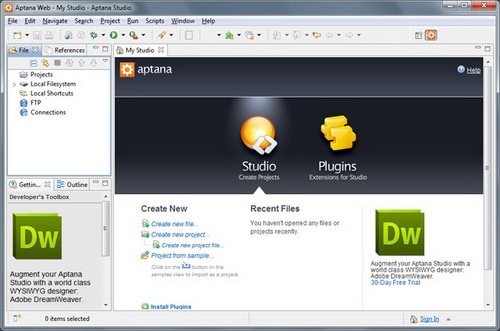
IDE
(Integrated Development Environment) represents an integrated development environment in which you can develop applications. This tutorial will be useful to all those that considering doing programing...
Magento: Why, or Why Not? -

The following is a brief outline of the advantages and the disadvantages of Magento as a Shopping cart. It gives a detailed analysis of the reasons that one should choose Magento for, as well as things that they must be careful about while using Magento. . If the few disadvantages can be overcome, then it is surely one of the best shopping cart platforms.
What is HTML?
HTML stands for HyperText Markup Language, the language used to create documents on the World Wide Web. HTML in email is about the same as HTML in websites. HTML is similar to SGML. HTML defines the structure and layout of a Web document by using a variety of tags and attribute. The correct structure for an HTML document starts with:
<HTML><HEAD> (enter here what document is about) </HEAD><BODY> and ends with </BODY></HTML>. All the information you'd like to include in your Web page fits in between the <BODY> and </BODY> tags.
There are hundreds of other tags used to format and layout the information in a Web page. For instance, <P> is used to make paragraphs and <I> … </I> is used to italicize fonts. Tags are also used to specify hypertext links. These allow Web developers to direct users to other Web pages with only a click of the mouse on either an image or word(s).
Tips
Open a web page in a new window
To open a link within a new window, place
TARGET="_blank" within your link code.
<A HREF="http://www.yourdomain.com/" TARGET="_blank">Your Link</a>
Never Delete a Webpage Revisited
In the tip "Never Delete a Webpage," I discussed why you should notcompletely remove a web address. In the tip, I stated that you need to create areferrer page where the old page used to go that pushes people back to a page ofyour choosing, keeping visitors away from 404 errors. If your web server isrunning on a UN*x machine, and you have shell access, there is a better way tocreate referrer pages.
The command "ln" creates a symbolic link from one file to another.This allows you to create a file "1.htm," and a link to that filecalled "home.htm." That way, when someone accesses"home.htm" they are brought to the file "1.htm."
Instead of creating referrer pages, create symbolic links. Use the parameter"-s" to the "ln" command to create what is called a softlink from one page to another. Don't worry too much about the technicalities;just know that this works.
For example, to create a link to the file "home.html" called"home.htm", enter in this command at the shell prompt:
ln -s home.htm home.html
Use Text Menus Too!
If you create site navigation menus using graphics, you still should createtext-only versions as well. Some people browse the web with graphics turned off,and some use browsers that do not support images (such as LYNX).
More on Menu Navigation
A previous tip discuss placing menu navigation areas on all of your pages.This is a highly recommended practice to ease peoples' browsing of your website,but do not offset this great idea by placing your navigation areas at differingsections of the page. If your navigation area is at the top of the page, keep itthere on all of the pages of your site. If it is at the bottom of the page, keepit there for the entire site.
Sometimes Fancy Editors Won't Work
Fancy webpage editors are nice - they allow WYSIWYG (What You See Is What YouGet) web design. Cutting and pasting is easy, and selecting graphics is abreeze. Some even have features that would be time-consuming to replicate byhand, such as automatically adding image HEIGHT and WIDTH tags, or searching apage or website for broken links.
Many people think learning a web editor is the key to successful web design.My advice is to learn HTML anyway, no matter how nice your web editor may be.Many web editors add useless HTML tags that cannot be removed unless you editthe raw HTML source. Some editors have bugs, making it nearly impossible to, forexample, place a hard return at a certain area of a page. Most do not supportevery HTML tag. If you ever need to edit a template file (an HTML file that willbe parsed and filled with information from a database), most HTML editors couldcorrupt the template. Thus, there are times when knowing and editing raw HTML iscrucial.
Opening Up New Windows
In order for the browser to launch a new window when a link is activated, add this in the HTML for a normal link:
TARGET="resource window"
The complete link would appear like this:
<a href="" TARGET="resource window">Click here</A>
Protect Your Email Address From Spam Robots
If you'd like to display your email address within your web pages, but are afraid Spam robots will harvest it, you can protect yourself. Instead of displaying the usual mailto:you@yourdomain.com, use the following code within your HTML:
<A HREF="mailto:you@yourdomain.com">Contact Us</A>
When clicked on, it will display your email address correctly
Subjects with Email
If you run a website and have an e-mail link, you're bound to get e-mail -possibly lots of it. Unfortunately, much of the e-mail you receive may have avery nondescript subject or none at all, leaving you to have to open everysingle message using your mail reader to see what the subject is about. There'sa better way. Attach the "?subject=SUBJECT" extension to your"mailto:" link and force a subject onto the user (unless they manuallychange it).
For example, the following e-mails someone@somewhere.com with the subject"Test Message."
<A HREF="mailto:someone@somewhere.com?subject=Test Message">
Displaying Text With An Image
To display your text wrapping around an image, place the following code within your <IMG> tag followed by your text.
<IMG BORDER="0" ALIGN="Left" SRC="yourimage.jpg"> Your Text
By placing the above code within your HTML, your image will be displayed on the left hand side with your text displayed on the right.
As you continue to type your text, it will automatically format itself to wrap around the right side and the bottom of your image. This example has been set up with a table to keep the text neatly aligned within a limited amount of space. This table's width is set up to span 50% of the page width.
<IMG BORDER="0" ALIGN="Right" SRC="yourimage.jpg"> Your Text
By placing the above code within your HTML, your image will be displayed on the right hand side with your text displayed on the left.
As you continue to type your text, it will automatically format itself to wrap around the left side and the bottom of your image. This example has been set up with a table to keep the text neatly aligned within a limited amount of space. This table's width is set up to span 50% of the page width.
Preventing Search Engine Indexing
To prevent a Search Engine from indexing a page, place the code below between the <HEAD> and </HEAD> tags
<META NAME="ROBOTS" CONTENT="NOINDEX,NOFOLLOW">
This tag tells the robots not to index this page and not to follow any links within the page.
<META NAME="ROBOTS" CONTENT="NOINDEX,FOLLOW">
This tag tells the robots not to index this page, but follow any links within the page.
More on Menu Navigation
A previous tip discuss placing menu navigation areas on all of your pages.This is a highly recommended practice to ease peoples' browsing of your website,but do not offset this great idea by placing your navigation areas at differingsections of the page. If your navigation area is at the top of the page, keep itthere on all of the pages of your site. If it is at the bottom of the page, keepit there for the entire site.
How to Indent Text on Both Sides
To indent text one tab-width (or one column) from both sides of the page, usethe <BLOCKQUOTE> </BLOCKQUOTE> tags. As the name of the tagsuggests, this is recommended when using large block quotes of text on awebpage.
Open all links in a new window
To open all links within a page in a new window, place the following code between your <HEAD> and </HEAD> tags.
<base target="main">
|
|
|
|
 Did You Know?
- The term hypertext, invented by Ted Nelson in 1965.
- HTML is the mother of all online languages. Why you ask? Simply because our web browsers are made to understand only HTML and only now some other various things.

|
|
|
|
|
|

 Very informal thoughts on WYSIWYG HTML editors like DreamWeaver and MS Frontpage and the likes.