
Operating Systems
 When you start the program you will see the familiar speed dial that is called Favorites here, and it is with a few predefined pages. Adding new pages in the Favorites section is very easy, as is their changing and deleting. Next to that, on the home screen are shortcuts for entering Bookmarks, the Downloads section, History as well as the display of tabs you recently closed. After you get into rekonq settings you will...
 Best we can say about this article is that it is merely a bried preview of what an Apache Server is and what it can do. A must for any network admin or any webmaster.
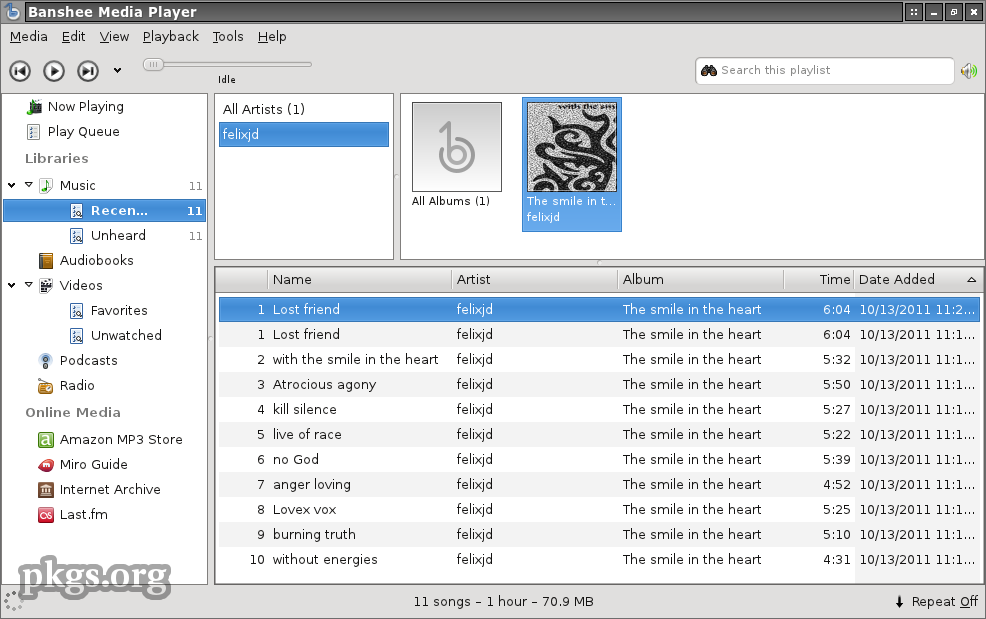 As in today's increasingly demanding customers, tools for music and multimedia are not classic audio and video players, who play them from the hard drive or CD-ROM drive. Despite the intense competition in the market of multimedia players, it is very difficult to choose one which would separate itself in a crowd, but we still think we have a winner.
 Open Source Ecology is a network of farmers, engineers, and supporters that for the last two years has been creating the Global Village Construction Set, The GVCS lowers the barriers to entry into farming, building, and manufacturing and can be seen as a life-size lego-like set of modular tools that can create entire economies, whether in rural Missouri, where the project was founded, in urban redevelopment, or in the developing world.
 Caution: This tutorial is HUGE. Please allow ample time to load.
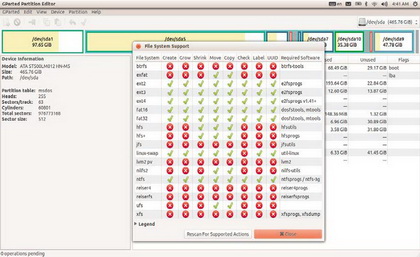 If you ever had a problem dividing partitions and working with file systems on your Linux OS, we have a cure for you. It is called GParted Partition Editor, and in the case you have installed some GNOME distribution, it is likely that you have encountered it.
 One of most important type of server is cluster servers. Software that enables clustering of servers is installed into a computer. Clustering servers also serve as load balancing servers between two computers. This is a common small business server. Clustering servers are used to avoid server failover. Server failover is the capability to shift to another standby server if the main server fails.
 You wouldn't go to a doctor who had never been to medical school, or hire a lawyer who never studied law. One side-effect of a world advancing as rapidly as ours is that fields are becoming more and more specialized and narrow. People can no longer get by on general knowledge in their careers, something I found out for myself not too long ago. I'd been out of high school for two years, scraping by on my own and picking up scraps of programming as I went. I saw all of the self-taught programmers breaking into the IT industry, and I hoped to do the same. After all, IT is one of the few industries out there where being creative and a quick learner is more important than a degree.
 I think we hit the mother-load of server security information in this article people. We urge, every server admin as well as those looking to get into server and network security to not miss out on this article. You may already be experiencing attacks and wouldn't even know. And we like to point out that this article has no views against the "White-Hat Hacking Community."
  Caution: This tutorial is HUGE. Please allow ample time to load.
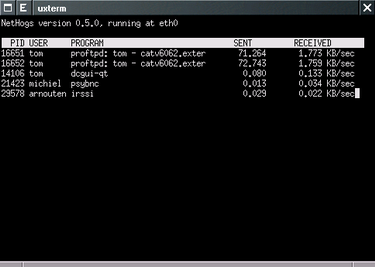 While you are trying to access your blog you notice that the page is loading very slowly. You see that Dropbox is syncing something and you know that YouTube is on. You have torrents you want to download. The easiest way would be to turn all that off and let the blog load, but that is not what you want.
 Ever wanted to run your own home web server? Now you can! This article will give you the lowdown on Microsoft web servers and third party web servers for use on Windows operating systems.
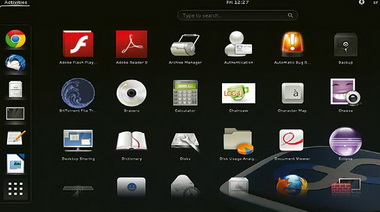 Here we have another version of the Fedora, more precisely the eighteenth. Let us remind ourselves, Fedora begins its life back in early 2003. As a free distribution that came out of the developers house RedHat team with the goal to achieve predominance in the field of free Linux distributions. Ten years later, they managed what they intended to and today Fedora is definitely one of the best distributions you can find.
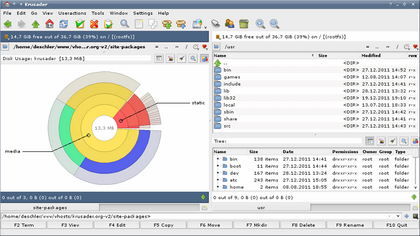 One of the common asked questions from those who are thinking about going to some GNU/Linux OS is can you install Total Commander (TC), the undisputed file manager for Windows. Its installation is possible with the use of Winea, although there are some decent replacements, like the Multi Commander, Thunar or the console Midnight Commander. They will all work perfectly, but...
 This is the first in a line of new tutorials dedicated to Joomla! CMS. In the introductory tutorial we will explain the installation of Joomla! CMS, and later we will go through some basic administrations.This is a tutorial that is meant for the absolute beginners, it is simple and will explain the basics in a few words.
 This is a list of nine very useful tips to Crash Proof your computer. Install more RAM. Yeah, everybody says it, but its true. If you can't stop buggy programs from leaking memory, you can at least give them more memory to leak. How much RAM do you need?
  The tutorial answers many common questions people have about WAMP. The ultimate goal of this tutorial is to help you determine if WAMP is the solution you are looking for by providing the advantages and disadvantages of WAMP. WAMP is a powerful backend web development and hosting environment integrated from Apache, MySQL and PHP. Using Apache as a web server, MySQL as a database server, and PHP as a server side script engine, WAMP controls all these components using an intuitive interface.
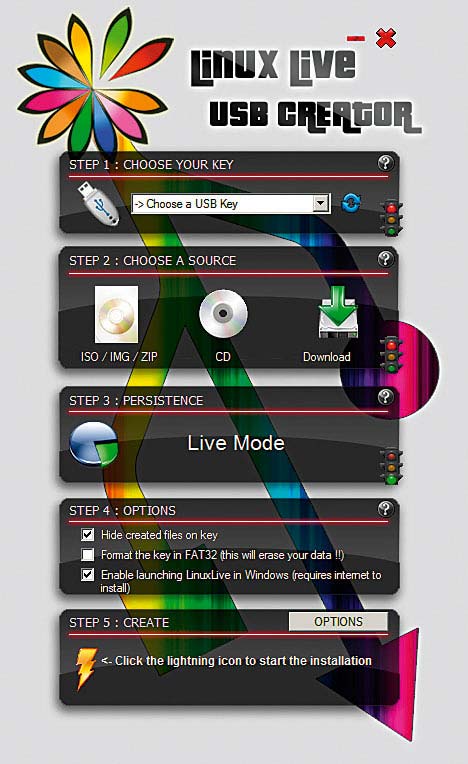 The advantages of a USB flash memory over a CD or DVD are obvious and indisputable. The speed and efficiency of data manipulation, and the ever growing capacity, with the constant drop of prices made the popular flashes became the integral part of everybody's personal pocket inventory. When you add the fact that most new computers have the option to boot from transportable media, it is completely logical that this method will become popular and almost a default way to start live systems.
 When asked the question what graphic card to choose for a Linux machine users, experienced, but not sufficiently familiar with subject matter, will usually answer: "AMD for laptop, nVidia for desktop". Having in mind the lack of the support of the "vanilla" Linux kernel for the modern nVidia Optimus technology that enables the consistency of one integrated and another "discreet" graphic card in laptops, by which the more powerful one should "light up" only when the graphic and processor needs that, previous opinion have sense. But...
 This article will discuss the differences between the Linux and Windows operating software's; we discuss some of the pro's and con's of each system. From this point forward we will discuss some of the more prominent ways in which Linux deferrers from Windows.
 Many times these errors have more to do with the Web servers you're trying to access rather than something being wrong with your computer. Here is a list of error messages you might encounter while surfing the Web and their respective meanings to help you figure out just what the problem is. Here is a list of error messages you might encounter while surfing the Web and their respective meanings to help you figure out just what the problem is.
 Mobile Internet is all present today through phones and tablets, and all operators have a solid offer of packages for computers too. The connection is established through a USB modem that, judging by the instructions, works only on Windows and rarely on Mac.
 We at TW were browsing about the web when we stumbled upon Mark's work. Although it's much outdated, it's very fundamental. And please don't let the title fool you. This is not a small short article but a short OS introductory book. An operating system is a layer of software which takes care of technical aspects of a computer's operation. It shields the user of the machine from the low-level details of the machine's operation and provides frequently needed facilities
 Most people think of Linux as something only for geeks and computer power users. However, we have come to see various flavors of
 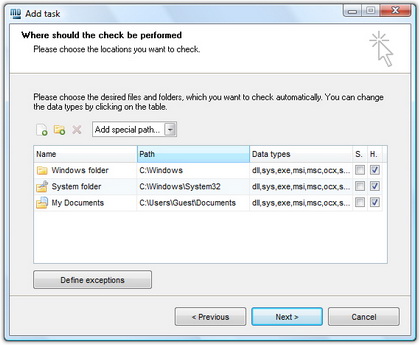 The hash function is a way of mapping a collection of information that can be various lengths in other values of fixed length. The values that the hash function gives are called hash values, codes, sums, checksums or simply hashes. MD5 is a cryptographic hash algorithm, which means that it takes information of arbitrary length and creates fixed lengths for it, a cryptographic hash value, in a way that any change of data (accidental or on purpose) leads to the change of that value.
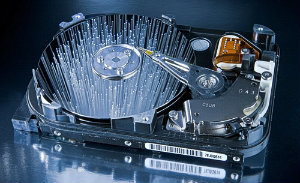 How many times have we come across TW visitor saying "How do I recover files" or "I deleted files from the recycling bin...how do I restore deleted files?"
 Since the introduction of the power PC processor, developers have been actively striving to create a flavor of Linux that runs efficiently on Apple Hardware while retaining the Mac's trademark ease of use.
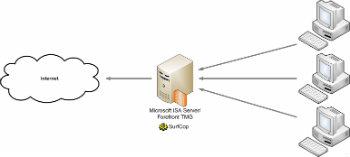 This weeks article discusses the nitty gritties of Server and Network Security and how to implement them. ISA Server uses Cache Array Routing Protocol (CARP) to enable a Web proxy array of virtually unlimited size for high availability and accelerated Web access. Internet Security and Acceleration (ISA) Server was built to enable companies to customize and extend their security and management features for optimum security and network performance by using a wide range of third-party solutions.
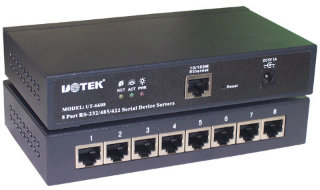 TCP ports will popup almost with any application you use wether it is ICQ or FTP. It will soon be realized how good its knowledge is once you yourself will start applying it in day to day tech use. TCP/IP uses several protocols, the two main ones being TCP and IP.
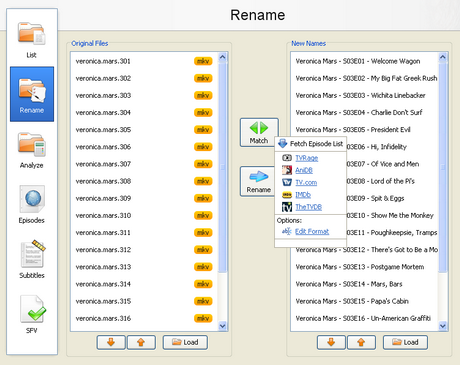 With the increase of capacity in hard drives and the increase of speed of the Internet there is the growth of available multimedia material on users computers. Sometimes it is difficult to find your way in a bunch of files and directories, where there are countless episodes of favorite shows or hours of movies that are waiting for some free time. Although modern file managers have advanced sorting options, renaming or some other searching, they still are not meant for handling a large number of files with multimedia content, that can be pretty diverse.
  Ever wonder what types of things servers take part in? Ever wonder the possibilities? Well read all about it here in this weeks article. A good 10 minutes reading for all you future potential system admins. Servers are often dedicated, meaning that they perform no other tasks besides their server tasks.
What is Linux?
 Pronounced lee-nucks. A freely-distributable open source implementation of UNIX that runs on a number of hardware platforms, including Intel and Motorola microprocessors. It was developed mainly by Linus Torvalds. Because it's free, and because it runs on many platforms, including PCs, Macintoshes and Amigas, Linux has become extremely popular over the last couple years.
Linux is an extremely powerful Unix operating system that is completely free. It has all the features of commercial operating systems including true multitasking, virtual memory, shared libraries, proper memory management and TCP/IP networking. It runs on many different processors including Intel x86, Motorola 68k series (Amiga and Atari), DEC Alpha, Sun Sparc, Mips and Motorola PowerPC.
Linux itself is not Unix, although many people call it that and you would be very hard pushed to tell the difference. This is because the Unix trademark is specific to systems that meet a complex set of X/Open standards and has a cost. Some Linux vendors however are working on "Unix" branding.
Linux Downloads
- Mainstream distribution developed in Brazil. Offers all of the major advantages of a mainstream distribution including ease of installation and setup. The edition for workstations and clients comes with major software packages including StarOffice, Netscape (in native languages), games, image manipulation applications and other utilities. The Server Edition comes with software for network administration, e-commerce and support for RAID and clusters.
- SOT Linux is perfectly suited for use in the home, as a workstation or an internet server. The Best Linux operating system is easy to install with no complicated options. Graphical installation goes smoothly, either on a new computer or beside another operating system. Selecting which operating system to start is simple thanks to an advanced graphical boot menu. Best Linux starts straight into a graphical Windows-like KDE-desktop which includes almost all of the software that might you use daily. The multilingual desktop consist of multiple workspaces to help you group your tasks. You can use one workspace for work matters, another to surf the internet and a third for writing a book. All this is possible due to Best Linux's superior multi-tasking.
- Built from Debian GNU/Linux this distribution provides all of the benefits of a Debian system. By packaging the best and most commonly used applications into a simple to install CD, you can have a complete desktop up and running in a short time. All the power of Debian is now available to users with little or no Linux experience. The Libranet distribution is backed by solid support and on line documentation. Software upgrades are available free to download, or on a CD. Debian's unique package manager takes care of software updates automatically.
- Debian GNU/Linux is a free distribution of the Linux based operating system.It is maintained and updated through the work of many users who volunteer their time and effort. Along with its large selection of prepackaged software is contains advanced package management tools that allow for easy installation and maintenance on individual systems and workstation clusters. Extensive pre-release testing is done to ensure the highest degree of reliability possible, and a publicly accessible bug tracking system provides an easy way to monitor customer feedback.
- Full-featured Linux distributionfor home and beginners to Linux. User-friendly graphical installationmanager, icepack config manager for an easy configuration of yourhardware settings, pre-configured software, unlimited support forindividuals, manual with comprehensive installation guide.Version 1.0 comes with the graphical icepack boot manager and thefollowing software: Office (including StarOffice), Multimedia, Graphics(with Gimp), Internet (with Netscape), Games (plus Loki demos) and more.Updates. Available in English and German.
- Linux-Mandrake is a friendly Linux Operating System which comes with KDE, Gnome, Window Maker, Enlightenment and other graphical interfaces. It provides ease of use for both home/office and servers. It is freely available in many languages, all over the world.
- LuteLinux combines the Linux kernel with application programs such as Netscape Communicator, games and utilities. It also includes an easy-to-use installer and step by step booklet to guide users through the installation and configuration process of Linux and the X Windowsystem.
- Slackware Linux is compatible with most Intel PC hardware. Slackware will provide stellar performance on high-end systems, including support for symmetric multi-processing (up to 16 processors), PCI, and special code optimizations for the 486, Pentium, and Pentium Pro and AMD Athlon
- SUSE, now a subsidiary of Novell, produces one of the most popular mainstream Linux distrbutions.
- Based on Slackware, CollegeLinux is aimed at desktop users. Features KDE and all the normal user-friendly features.
- distribution that aims to be a free version of Red Hat Enterprise Linux.
- A freely available, enterprise class operating system designed to compete with commercial offerings from RedHat and SUSE/Novell.
Tips
Speeding up your hard drive
Get faster file transfer by using 32-bit transfers on your hard drive
Just add the line:
hdparm -c3 /dev/hdX
to a bootup script.
If you use SuSE or other distros based on SYS V,
/sbin/init.d/boot.local
should work for you.
This enables 32-bit transfer on your hard drive. On some systems it can improve transfer performance by 75%.
To test your performance gain, type:
hdparm -t -T /dev/hdX
Protecting yourself from being a spam base
Sendmail allows for someone to telnet to port 25 and do an expn (expand) to see what users and aliases are on your machine. Also, vrfy (verify) means someone can get legal e-mail addresses from your box and send spam through your machine.
Don't want that, so look in your /etc/sendmail.cf file for a line that looks like this:
###############
# Options #
###############
Now cut and paste these next few lines below that:
# turning off the expand option and requiring a helo from
# a remote computer
Opnoexpn,novrfy,needmailhelo
Now there is no expansion, no verify, and sendmail requires a helo with a legitimate DNS in order to use the mailer.
Then look in your /etc/mail/aliases file and ensure you have only your own boxen and/or subnet in there as OK or RELAY. That will help cut down on spammers' ability to find relay machines to do their dirty work for them.
Cleaning up Netscape crashes
You have a tip about Netscape leaving copies of itself running below, but you can make a general shell script to clean up a Netscape crash like this:
#!/bin/sh
#kill.netscape
killall -9 netscape
rm ~/.netscape/lock
Then all your users can use it and clean up the dreaded hundred instances of Netscape running when it crashed. Change netscape to netscape-communicator or netscape-navigator as appropriate
More DOS-like commands
Many people are moving to Linux because they miss the stability of good old DOS. In that light, many users are typing DOS commands (which originated from UNIX in the first place) that look fine but cause errors. The command "cd.." in DOS is perfectly valid, but Linux balks. This is because "cd" is a command, and any parameter for that command must be separated from the command by a space. The same goes for "cd/" and "cd~". A quick fix is here.
Use your favorite text editor in your home directory to edit the file ".bashrc". The period is there on purpose, this hides the file from normal ls display.
Add the lines:
alias cd/="cd /"
alias cd~="cd ~"
alias cd..="cd .."
And I usually add these...
alias md="mkdir"
alias rd="rmdir -i"
alias rm="rm -i"
and my first and still favorite alias...
alias ls="ls --color"
alias is a powerful tool, and can be used in the .bashrc script as well as from the command line. You can, if you want to spend the time, create your own group of shell commands to suit how you work. As long as you put them in your .bashrc file, they'll be there everytime you log in. Note that if you frequently log in as root, you might want to copy /home/username/.bashrc to /root/.bashrc to keep yourself sane.
Resurrecting corrupted floppies
Here's how to make a floppy disk with "track-0 bad" reusable again:
If the track zero of a floppy disk is found to be bad, no DOS or Windows utility is going to do anything about it--you just have to throw it in your unrecycle bin.
This tip cannot recover the data, but can make the disk carry things again, at least for the time being (moments of desperation).
How to:
(A) Format the disk with Linux. Build a Linux file system (don't use mformat). I did this some time before by invoking the makebootdisk command (in Slakware) and stopped after the formatting was over. There should be better ways to do it in RedHat 5.2 or other recent versions.
(B) Reformat the disk with Windows. Use the DOS window and the /u option while formatting.
Using DOS-like commands
There's a package called mtools which is included with most of the distributions out there.
There are several commands for basic DOS stuff. For example, to directory the floppy drive, type mdir a:. This is rather handy--you don't need to mount the floppy drive to use it.
Other commands are: mattrib , mcd, mcopy, mdel, mformat, mlabel, mren (rename), mmd, mrd, and mtype.
This doesn't work for reading from hard disks. In that case, you would add entries to /etc/fstab, drive type msdos for fat16 partitions, and vfat for fat32.
Copying files from Linux to Windows 98 or 95B (FAT32)
It's as easy as installing the program explore2fs. It uses a Windows Explorer interface and supports drag-and-drop. I have found it reliable and useful for migrating files from my RedHat 6.1 partition to my Win95B partition quickly and with a minimum of fuss.
It's available free--as all software should be--from this URL:
http://uranus.it.swin.edu.au/~jn/linux/explore2fs.htm
Installing in partitions
I am using SuSE Linux, which has some interesting options (I don't know if RedHat or other distributions offer you this, too).
1. You can install Linux on a single file in your Windows Partition. Nice to try it out, but I guess it is not that fast then. You can load it then with a DOS program, loadlin.
2. Use Fips or Partition Magic. Defragment your hard drive (you should do this for Point 1, too) and split it up. I guess most users just have one partition, which you should split up into at least three: one for the Linux files, and a smaller swap partition (take about 32 to 64 MB, depending on your RAM--less RAM needs bigger swap partitions). If you decide later to deinstall Linux you can always delete both partitions and create one big one for Windows again.
Fips is a stupid command line program, but if you're too lazy to read at least a little bit, then you should stop thinking about Linux anyway... ;)
Command Pipelines
Pipes are easy. The Unix shells provide mechanisms which you can use them to allow you to generate remarkably sophisticated `programs' out of simple components. We call that a pipeline. A pipeline is composed of a data generator, a series of filters, and a data consumer. Often that final stage is as simple as displaying the final output on stdout, and sometimes the first stage is as simple as reading from stdin. I think all shells use the "|" character to separate each stage of a pipeline. So:
data-generator | filter | ... | filter | data-consumer
Each stage of the pipeline runs in parallel, within the limits which the system permits. Hey, look closely, because that last phrase is important. Are you on a uni-processor system because if you are, then obviously only one process runs at a time, although that point is simply nitpicking. But pipes are buffers capable of holding only finite data. A process can write into a pipe until that pipe is full. When the pipe is full the process writing into it blocks until some of the data already in the pipe has been read. Similarly, a process can read from a pipe until that pipe is empty. When it's empty the reading process is blocked until some more data has been written into the pipe.
What is IP masquerading and when is it of use?
IP masquerading is a process where one computer acts as an IP gateway for a network. All computers on the network send their IP packets through the gateway, which replaces the source IP address with its own address and then forwards it to the internet. Perhaps the source IP port number is also replaced with another port number, although that is less interesting. All hosts on the internet see the packet as originating from the gateway.
Any host on the Internet which wishes to send a packet back, ie in reply, must necessarily address that packet to the gateway. Remember that the gateway is the only host seen on the internet. The gateway rewrites the destination address, replacing its own address with the IP address of the machine which is being masqueraded, and forwards that packet on to the local network for delivery.
This procedure sounds simple, and it is. It provides an effective means by which you can provide second class internet connections for a complete LAN using only one (internet) IP address.
Setting UTC or local time
When Linux boots, one of the initialisation scripts will run the /sbin/hwclock program to copy the current hardware clock time to the system clock. hwclock will assume the hardware clock is set to local time unless it is run with the --utc switch. Rather than editing the startup script, under Red Hat Linux you should edit the /etc/sysconfig/clock file and change the ``UTC'' line to either ``UTC=true'' or ``UTC=false'' as appropriate.
Setting the system clock
To set the system clock under Linux, use the date command. As an example, to set the current time and date to July 31, 11:16pm, type ``date 07312316'' (note that the time is given in 24 hour notation). If you wanted to change the year as well, you could type ``date 073123161998''. To set the seconds as well, type ``date 07312316.30'' or ``date 073123161998.30''. To see what Linux thinks the current local time is, run date with no arguments.
Setting the hardware clock
To set the hardware clock, my favourite way is to set the system clock first, and then set the hardware clock to the current system clock by typing ``/sbin/hwclock --systohc'' (or ``/sbin/hwclock --systohc --utc'' if you are keeping the hardware clock in UTC). To see what the hardware clock is currently set to, run hwclock with no arguments. If the hardware clock is in UTC and you want to see the local equivalent, type ``/sbin/hwclock --utc''
Setting your timezone
The timezone under Linux is set by a symbolic link from /etc/localtime[1] to a file in the /usr/share/zoneinfo[2] directory that corresponds with what timezone you are in. For example, since I'm in South Australia, /etc/localtime is a symlink to /usr/share/zoneinfo/Australia/South. To set this link, type:
ln -sf usr/share/zoneinfo/your/zone /etc/localtime
Replace your/zone with something like Australia/NSW or Australia/Perth. Have a look in the directories under /usr/share/zoneinfo to see what timezones are available.
[1] This assumes that /usr/share/zoneinfo is linked to /etc/localtime as it is under Red Hat Linux.
[2] On older systems, you'll find that /usr/lib/zoneinfo is used instead of /usr/share/zoneinfo. See also the later section ``The time in some applications is wrong''.
Zombies
What are these zombie processes that show up in ps? I kill them but they don't go away!
Zombies are dead processes. You cannot kill the dead. All processes eventually die, and when they do they become zombies. They consume almost no resources, which is to be expected because they are dead! The reason for zombies is so the zombie's parent (process) can retrieve the zombie's exit status and resource usage statistics. The parent signals the operating system that it no longer needs the zombie by using one of the wait() system calls.
When a process dies, its child processes all become children of process number 1, which is the init process. Init is ``always'' waiting for children to die, so that they don't remain as zombies.
If you have zombie processes it means those zombies have not been waited for by their parent (look at PPID displayed by ps -l). You have three choices: Fix the parent process (make it wait); kill the parent; or live with it. Remember that living with it is not so hard because zombies take up little more than one extra line in the output of ps.
How do i give users an ftp only account (no telnet, etc).
give them shell which doesn't work, but is listed in /etc/shells
for example /bin/false...
How to do backup with tar?
You can mantain a list of files that you with to backup into a file and tar
it when you wish.
tar czvf tarfile.tar.gz -T list_file
where list_file is a simple list of what you want to include into the tar
i.e:
/etc/smb.conf
/root/myfile
/etc/ppp (all files into the /etc/ppp directory)
/opt/gnome/html/gnome-dev-info.html
How to keep a computer from answering to ping?
a simple "echo 1 > /proc/sys/net/ipv4/icmp_echo_ignore_all" will do the
trick... to turn it back on, simply
"echo 0 > /proc/sys/net/ipv4/icmp_echo_ignore_all"
Customizing your directory colors.
I know a lot of you know the command ls --color. Which displays your directory with colors. But, a lot of people may not know that those colors are customizable. All you need to do is add the following line to your /etc/bashrc file.
eval `dircolors /etc/DIR_COLORS`
And then all of the color configuration can be found in the fi le /etc/DIR_COLORS
Frozen Xwindow
If your Xwindow freezes sometimes, here are two ways that you may try to kill your server. The first is the simple simple way of killing your X server the key combination: Ctrl+Alt+Backspace
The second way is a little more complicated, but it works most of the time. Hit Ctrl+Alt+F2 to startup a virtual console, then log in with your user name and password and run:
# ps -ax | grep startx
This will give you the PID of your Xserver. Then just kill it with:
# kill -9 PID_Number
To go back to your first console, just hit Alt-F1
Converting all files in a directory to lowercase.
#!/bin/sh
# lowerit
# convert all file names in the current directory to lower case
# only operates on plain files--does not change the name of directories
# will ask for verification before overwriting an existing file
for x in `ls`
do
if [ ! -f $x ]; then
continue
fi
lc=`echo $x | tr '[A-Z]' '[a-z]'`
if [ $lc != $x ]; then
mv -i $x $lc
fi
done
Wow. That's a long script. I wouldn't write a script to do that; instead, I would use this command:
for i in * ; do [ -f $i ] && mv -i $i `echo $i | tr '[A-Z]' '[a-z]'`;
done;
on the command line.
Script to view those compressed HOWTOs.
From a newbie to another, here is a short script that eases looking for and viewing howto documents. My howto's are in /usr/doc/faq/howto/ and are gzipped. The file names are XXX-HOWTO.gz, XXX being the subject. I created the following script called "howto" in the /usr/local/sbin directory:
#!/bin/sh
if [ "$1" = "" ]; then
ls /usr/doc/faq/howto | less
else
gunzip -c /usr/doc/faq/howto/$1-HOWTO.gz | less
fi
When called without argument, it displays a directory of the available howto's. Then when entered with the first part of the file name (before the hyphen) as an argument, it unzips (keeping the original intact) then displays the document.
For instance, to view the Serial-HOWTO.gz document, enter:
$ howto Serial
Util to clean up your logfiles.
If you're like me, you have a list with 430 subscribers, plus 100+ messages per day coming in over UUCP. Well, what's a hacker to do with these huge logs? Install chklogs, that's what. Chklogs is written by Emilio Grimaldo, grimaldo@panama.iaehv.nl, and the current version 1.8 available from ftp.iaehv.nl:/pub/users/grimaldo/chklogs-1.8.tar.gz. It's pretty self explanatory to install(you will, of course, check out the info in the doc subdirectory). Once you've got it installed, add a crontab entry like this:
# Run chklogs at 9:00PM daily.
00 21 * * * /usr/local/sbin/chklogs -m
Handy Script to Clean Up Corefiles.
Create a file called rmcores(the author calls it handle-cores) with the following in it:
#!/bin/sh
USAGE="$0
if [ $# != 2 ] ; then
echo $USAGE
exit
fi
echo Deleting...
find $1 -name core -atime 7 -print -type f -exec rm {} \;
echo e-mailing
for name in `find $1 -name core -exec ls -l {} \; | cut -c16-24`
do
echo $name
cat $2 | mail $name
done
And have a cron job run it every so often.
Moving directories between filesystems.Quick way to move an entire tree of files from one disk to another
(cd /source/directory && tar cf - . ) | (cd /dest/directory && tar xvfp -)
[ Change from cd /source/directory; tar....etc. to prevent possibility of trashing directory in case of disaster.]
Finding out which directories are the largest.Ever wondered which directories are the biggest on your computer? Here's how to find out.
du -S | sort -n
How do I stop my system from fscking on each reboot?
When you rebuild the kernel, the filesystem is marked as 'dirty' and so your disk will be checked with each boot. The fix is to run:
rdev -R /zImage 1
This fixes the kernel so that it is no longer convinced that the filesystem is dirty.
Note: If using lilo, then add read-only to your linux setup in your lilo config file (Usually /etc/lilo.conf)
How to avoid fscks caused by "device busy" at reboot time.
If you often get device busy errors on shutdown that leave the filesystem in need of an fsck upon reboot, here is a simple fix:
To /etc/rc.d/init.d/halt or /etc/rc.d/rc.0, add the line
mount -o remount,ro /mount.dir
for all your mounted filesystems except /, before the call to umount -a. This means if, for some reason, shutdown fails to kill all processes and umount the disks they will still be clean on reboot. Saves a lot of time at reboot for me.
How to find the biggest files on your hard-drive.
ls -l | sort +4n
Or, for those of you really scrunched for space this takes awhile but works great:
cd /
ls -lR | sort +4n
A script for cleaning up after programs that create autosave and backup files.
Here is a simple two-liner which recursively descends a directory hierarchy removing emacs auto-save and backup (~) files, .o files, and TeX .log files. It also compresses .tex files and README files. I call it 'squeeze' on my system.
#
!/bin/sh
#SQUEEZE removes unnecessary files and compresses .tex and README files
#By Barry tolnas, tolnas@sun1.engr.utk.edu
#
echo squeezing $PWD
find $PWD \( -name \*~ -or -name \*.o -or -name \*.log -or -name \*\#\) -exec
rm -f {} \;
find $PWD \( -name \*.tex -or -name \*README\* -or -name \*readme\* \) -exec gzip -9 {} \;
How to find out what process is eating the most memory.
ps -aux | sort +4n
-OR-
ps -aux | sort +5n
How do I find which library in /usr/lib holds a certain function?
What if you're compiling and you've missed a library that needed linking in? All gcc reports are function names... Here's a simple command that'll find what you're looking for:
for i in *; do echo $i:;nm $i|grep tgetnum 2>/dev/null;done
Where tgetnum is the name of the function you're looking for.
I compiled a small test program in C, but when I run it, I get no output!
You probably compiled the program into a binary named test, didn't you? Linux has a program called test, which tests if a certain condition is true, it never produces any output on the screen. Instead of just typing test, try: ./test
|
|||