Operating Systems
Defragment Your Hard Drive -
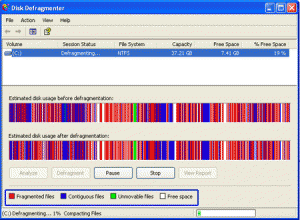
This article will show you a whole new way of defragmenting you computer and will explain why exactly we should defrag our computers every now and then.
Apache Web Server -

Best we can say about this article is that it is merely a bried preview of what an Apache Server is and what it can do. A must for any network admin or any webmaster.
Banshee 2.4.1 -
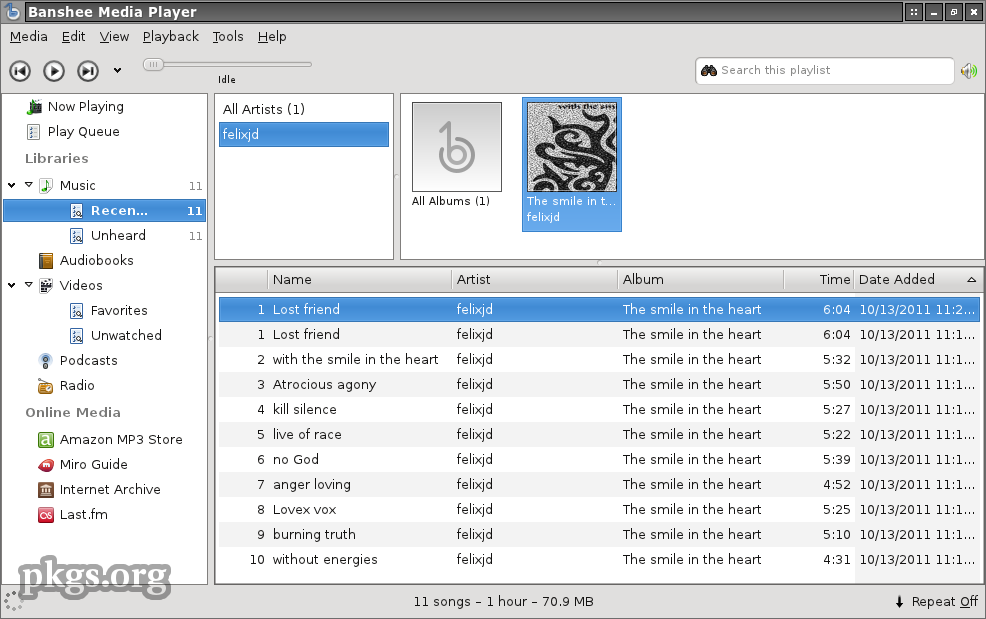
As in today's increasingly demanding customers, tools for music and multimedia are not classic audio and video players, who play them from the hard drive or CD-ROM drive. Despite the intense competition in the market of multimedia players, it is very difficult to choose one which would separate itself in a crowd, but we still think we have a winner.
Types of Servers 2 -

One of most important type of server is cluster servers. Software that enables clustering of servers is installed into a computer. Clustering servers also serve as load balancing servers between two computers. This is a common small business server. Clustering servers are used to avoid server failover. Server failover is the capability to shift to another standby server if the main server fails.
53 Easiest Windows Tips and Tricks -
This week we'll show you some of the
easiest tricks you can use in
Windows to make your day to day stuff work easier and quicker. Ever wonder how something something can be done using that certain application in
Windows? Well here are 53 of the
easiest tips we could muster we hope that you'll like at least a few of them if not all.
Make that Laptop Battery Last -

Here are easy to apply tips and tricks to make your laptop batteries last for much longer periods of time. Charge and immediately discharge your batteries a few times before relying on them.
Computer Training Excuses -

You wouldn't go to a doctor who had never been to medical school, or hire a lawyer who never studied law. One side-effect of a world advancing as rapidly as ours is that fields are becoming more and more specialized and narrow. People can no longer get by on general knowledge in their careers, something I found out for myself not too long ago. I'd been out of high school for two years, scraping by on my own and picking up scraps of programming as I went. I saw all of the self-taught programmers breaking into the IT industry, and I hoped to do the same. After all, IT is one of the few industries out there where being creative and a quick learner is more important than a degree.

Types of Attacks on Web Servers -

I think we hit the mother-load of server security information in this article people. We urge, every server admin as well as those looking to get into server and network security to not miss out on this article. You may already be experiencing attacks and wouldn't even know. And we like to point out that this article has no views against the "White-Hat Hacking Community."
PowerShell: Windows Command Line on Speed -

Who needs another shell? Unlike the
Unix world,
Windows hasbeen pretty consistent with the shell environment. First there was
MS-DOS (
COMMAND.COM) and later
Windows NT (
CMD.EXE). You can actually still get to
COMMAND.COM if you really, really want to. But for all intents and purposes, these have been the only two shells Windows users have ever known.
Microsoft wants to change that. When .Net was announced in 2000, Microsoft promised everything would one day be .Net. Unfortunately, Microsoft stuck the .Net name on things that were not .Net at all, such as Passport.Net which had no managed code in it at all.
Installing a Web Server in Windows -
Ever wanted to run your own home web server? Now you can! This article will give you the lowdown on Microsoft web servers and third party web servers for use on Windows operating systems.
Batch Scripting on Windows 7 -
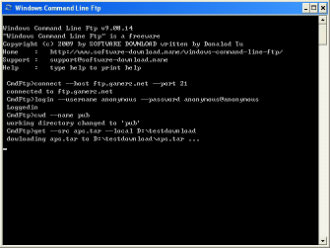
There are numerous reasons that
batch scripting can help users get a more full experience out of
Microsoft Windows 7. They can be used to automate tasks just as easily as they can contain
long commands that are not easy to work around. By starting with more simple models, a programmer can usually get the feel for what
batch scripts are supposed to look like. That being said, anyone who has some experience with the
command line can essentially take a group of
commands that they've entered and use them as a makeshift
batch script with no further editing.
Crash Proofing Your Computer -

This is a list of nine very useful tips to Crash Proof your computer. Install more RAM. Yeah, everybody says it, but its true. If you can't stop buggy programs from leaking memory, you can at least give them more memory to leak. How much RAM do you need?
Getting Started with WAMP -

The tutorial answers many common questions people have about WAMP. The ultimate goal of this tutorial is to help you determine if WAMP is the solution you are looking for by providing the advantages and disadvantages of WAMP. WAMP is a powerful backend web development and hosting environment integrated from Apache, MySQL and PHP. Using Apache as a web server, MySQL as a database server, and PHP as a server side script engine, WAMP controls all these components using an intuitive interface.
NTFS and FAT File Systems -

The system of collecting information together in "files" which in turn are grouped in "directories" or "folders" provides a method for naming and addressing information that is familiar to most PC users. But the mechanics of how the information is actually physically placed on the hard drive and retrieved is not something most of us ever think about.
How to Drag an off-Screen Window Back to the Desktop -

...the
display settings were displayed... on the
TV screen. Which I couldn't see. A nice little catch-22 there. Not to worry, there is a solution. For applications that do not show up in the taskbar. The desktop settings window does not show up in the taskbar, so you can't do it as described above. Here's what to do.
Specify Users' Logon Time in Windows -
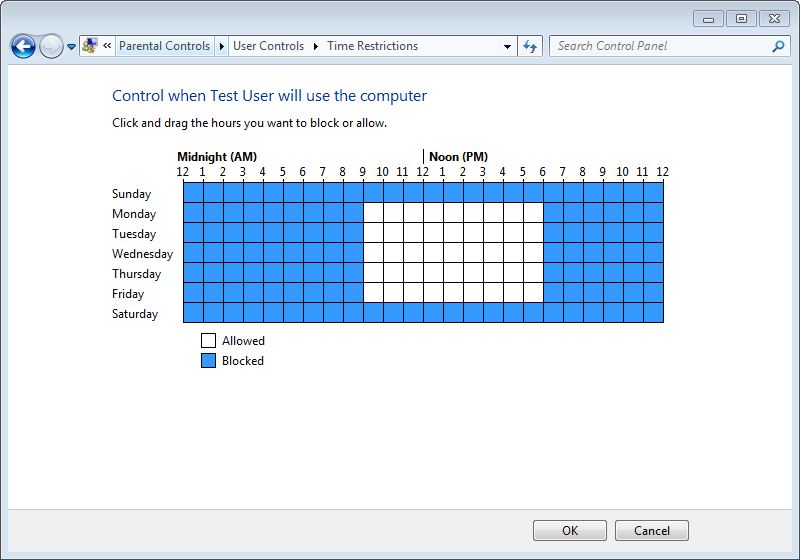
Logon time is the duration between which the operating system allows user accounts to logon to the computer. Logon time can be configured on the operating system only by the administrators of the computer. User accounts that belong to non-admin groups cannot modify or define the logon time and are only allowed to logon to the computer at the times specified for them by the administrators.
Removing No Name Files & Folders -

This quick article will explain how to remove folder/file on a Windows machine that have no name and therefore are a pain in the rear end to delete, rename, or drag.
What are Operating systems? -
The way that computers work is that they use something called an
Operating System, basically a platform in the form of a low level software which enables programers and other people to make other, more complex programs. A common misconception is that OS (operating system) software runs only on computers, but the truth is that it runs on phones, routers and other network devices.
Differences Between Linux And Windows -
This article will discuss the differences between the Linux and Windows operating software's; we discuss some of the pro's and con's of each system. From this point forward we will discuss some of the more prominent ways in which Linux deferrers from Windows.
How to Unlock Your Computer if You Lost Your Password -
 Using the reset a password disc
 is the right solution if you have prepared before, but what happens if you didn't take the needed steps before you have lost your password? If this is truly the case, you have to use a special program that will enable unlocking your operating system.
The best free option is Ophcrack, a program that guesses the code by using a special program called "
the rainbow table".
How to Deal With Stresses & Anxieties in Today's Computer Industry -

Sometimes, we get stressed when everything happens all at once. When this happens, a person should take a deep breath and try to find something to do for a few minutes to get their mind off of the problem. A person could take a walk, listen to some music, read the newspaper or do an activity that will give them a fresh perspective on things.
Web Server Error Messages -

Many times these errors have more to do with the Web servers you're trying to access rather than something being wrong with your computer. Here is a list of error messages you might encounter while surfing the Web and their respective meanings to help you figure out just what the problem is. Here is a list of error messages you might encounter while surfing the Web and their respective meanings to help you figure out just what the problem is.
Access Files Quickly in XP & 2000 -
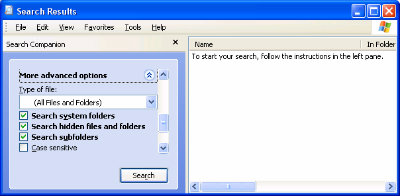
Don't you hate it when you open Windows Explorer in Windows 2000 or XP, and you have to sift through all sorts of drives and folders to get to the location you want? Wouldn't it be easier if Windows Explorer would automatically open to that location? It would be easier, and it can be done. As I'll show you, Windows Explorer's default location can be changed to whatever location you want.
Short Introduction to Operating Systems -
We at TW were browsing about the web when we stumbled upon Mark's work. Although it's much outdated, it's very fundamental. And please don't let the title fool you. This is not a small short article but a short OS introductory book. An operating system is a layer of software which takes care of technical aspects of a computer's operation. It shields the user of the machine from the low-level details of the machine's operation and provides frequently needed facilities
Ubuntu in Place of Windows -

Most people think of
Linux as something only for geeks and
computer power users. However, we have come to see various flavors of
LinuxOS being sold in major
retail stores in the last few years and we also see a trend being set online. In this article, we're simply going to single out only one of many
Linux flavors known as
Ubuntu.
Introducing Windows 8 -
 Windows 8
 is the newest
operating system destined to be released from
Microsoft, and from what they have revealed, they have got a whole lot of changes ready for the end-user. Far from redesigning the system from the ground up, they have settled on pulling inspiration from their popular Windows Phone and from tweaks they have made over the years to the iconic Windows look.
Practical Batch Tutorial -
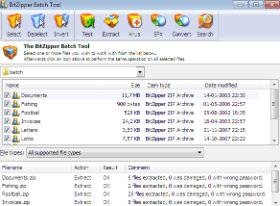
This tutorial was a long time coming. It teaches the readers in a very simple and down to earth language how to create a batch file to backup your various files. Also pushes the readers to think outside the tutorial and to figure out more ways to make the given commands even better. I suggest that anyone trying to learn Batch Scripting reads this. It will not be a waste of time, I promise.
TW Tech Glossary - Misplaced your bible? Well here it is - Tech Glosasary! This truly took a while to complete and should be used by all from beginners to advance techies.
Windows Explorer - Shortcuts -
Keyboard shortcuts for Windows Explorer. Expand the current selection if it is collapsed or Select the first subfolder - RIGHT ARROW. And many more.
MD5 File Hasher 1.3 -
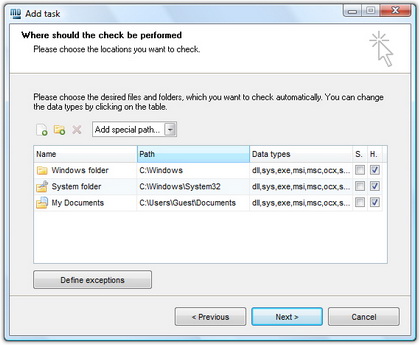
The hash function is a way of mapping a collection of information that can be various lengths in other values of fixed length. The values that the hash function gives are called hash values, codes, sums, checksums or simply hashes.
MD5 is a cryptographic hash algorithm, which means that it takes information of arbitrary length and creates fixed lengths for it, a cryptographic hash value, in a way that any change of data (accidental or on purpose) leads to the change of that value.
How To Recover Deleted Files? -
How many times have we come across TW visitor saying
"How do I recover files" or
"I deleted files from the recycling bin...how do I restore deleted files?"
Well, don't worry and be happy that you came across this little article on TechiWarehouse.Com.
You can often successfully recover deleted files from a PC, it all depends on what has happened since the files were deleted.
Windows Registry Tips and Tweaks -
These tips are provided as-is, with no warranty, either implied or otherwise. These tips do not include a thorough explanation of why you may want to use them, or why it might be a good idea not to. They are strictly meant to be a listing of registry tips and tweaks that I have collected over the years. Feel free to send me corrections or clarifications to us through our contact page.
Internet Security and Acceleration (ISA) Server -
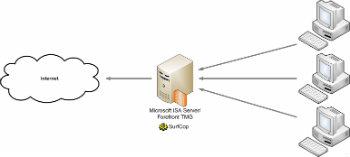
This weeks article discusses the nitty gritties of Server and Network Security and how to implement them. ISA Server uses Cache Array Routing Protocol (CARP) to enable a Web proxy array of virtually unlimited size for high availability and accelerated Web access. Internet Security and Acceleration (ISA) Server was built to enable companies to customize and extend their security and management features for optimum security and network performance by using a wide range of third-party solutions.
Removing Windows Messenger -

Ever got annoyed with Windows Messenger Icon in your system tray? Well we'll show you how to take this bad boy out of your PC quickly. Windows Messenger is a Swiss Army Knife sort of program: Instant messenger, video conferencer, file transferer, shared whiteboard, voice chat.
Understanding the Registry -

Learn all about the Windows Registry in this free tutorial from TechiWarehouse.Com. Making changes to the Registry is a lot easier than you think provided you take the sensible precautions outlined in this article.
Most Common TCP Ports -
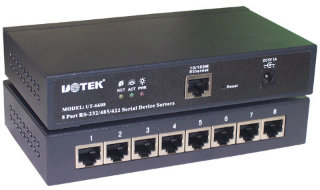
TCP ports will popup almost with any application you use wether it is ICQ or FTP. It will soon be realized how good its knowledge is once you yourself will start applying it in day to day tech use. TCP/IP uses several protocols, the two main ones being TCP and IP.
FileBot - Multimedia Manager -
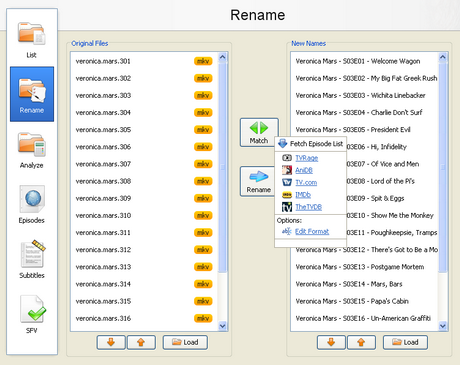
With the increase of capacity in hard drives and the increase of speed of the Internet there is the growth of available multimedia material on users computers. Sometimes it is difficult to find your way in a bunch of files and directories, where there are countless episodes of favorite shows or hours of movies that are waiting for some free time. Although modern file managers have advanced sorting options, renaming or some other searching, they still are not meant for handling a large number of files with multimedia content, that can be pretty diverse.
Types of Servers -

Ever wonder what types of things servers take part in? Ever wonder the possibilities? Well read all about it here in this weeks article. A good 10 minutes reading for all you future potential system admins. Servers are often dedicated, meaning that they perform no other tasks besides their server tasks.
Windows Windows on the Wall -

Windows NT is generally regarded among IT (information technology) professionals as the most stable and secure Windows OS (operating system). Win2000 and WinXP Pro work well in a peer-to-peer network, but these OSes are designed to handle client/server networking, where in multiple clients (computers, or workstations) connect to one or more servers (computers that control the network's software and each client's access to other parts of the network).
What is Windows 2000?
Windows 2000 is a product in Microsoft's Windows line of operating systems. There are four versions of Windows 2000: Professional -- an operating system for business desktop and laptop systems. It is used to run software applications, connect to Internet and intranet sites, and access files, printers, and network resources.
Server - both a Web server and an office server. Windows 2000 Server lets users build Web applications and connect to the Internet.
Advanced Server - an operating for line-of-business applications and e-commerce. It contains all the functionality of the standard version of Windows 2000 Server, plus additional features for applications that require higher levels of scalability and availability.
Data Center Server - developed to work in high-traffic computer networks, it is designed for enterprises that need reliable high-end drivers and software. It supports up to 32-way SMP and up to 64 GB of physical memory.
What We Cover
This category mainly covers Windows 2000 Professional (W2Kpro) from a users' point and not server, advanced server, or data center which is mainly for use of Systems Administrators. However, to get heavy duty info for those operating systems you may visit our MCSE Certifications category which maybe just what your looking if W2Kpro is not your query.
W2K Certifications
Microsoft has setup exam 70-210 for anyone who wants to be certified in Windows 2000 Professional and other exams for similar Windows 2000 series Operating System which consists the MSCE Certification Track. To learn more, please visit (MCSE) category.
Tips
Speed up the Boot Menu
Tired of waiting thirty seconds to boot Windows 2000 if you don't select from the boot menu? Speed up the booting process by only showing the available operating systems for just a couple of seconds.
Right-click "My Computer" on the desktop and choose "Properties". On the "System Properties" multi-tabbed dialog box that follows, click "Advanced". Click the "Startup and Recovery..." button. Then, on the "Startup and Recovery" dialog box that follows, next to "Display list of operating systems for ... seconds", select the number of seconds that you want the computer to wait before continuing with the default OS. When you're done, press "OK" to close the dialog box.
Desktop Disappearing?
Although Windows 2000 is more stable than previous versions of NT, in some situations, strange things can happen. If, for example, Explorer crashes, most of your desktop, including the "Start" button, disappears. To bring back Explorer without rebooting your machine, press CONTROL-ALT-DELETE. When the "Windows Security" dialog box appears, click the "Task Manager" button. If the "Windows Task Manager' dialog box appears as it should, select the "File" menu and then "New Task (Run)". When the "Create New Task" dialog box appears, just type in "Explorer" and press the "OK" button. Windows Explorer should then reappear, complete with the "Start" button.
Change Process Priority
Is a particular program or process running too fast or too slow? Is a program or process taking too much of your CPU time or can you allow a process or program to take more of your computing power? To change these settings for a particular process, just right-click on an empty area of your taskbar and choose "Task Manager..." On the "Windows Task Manager" dialog box that follows, select a process and right-click it. On the popup menu that appears, select "Set Priority" and choose one of the following priorities: "Realtime", "High", "Above Normal", "Normal", "Below Normal", or "Low". The lower the priority is on the popup menu, the lower percentage of CPU time will be delegated to said priority.
Note that depending on the process and your administrative rights to your machine, you may not be able to change a particular process's priority.
Put the Desktop in your Taskbar
Do you frequently multitask? If so, all of the windows created by running applications can quickly cover your desktop. If you'd like, you can make the desktop icons immediately accessible from your taskbar. Just right-click an empty area of your taskbar, choose "Toolbars", and check "Desktop". Your desktop icons will then be immediately accessible without having to minimize your current windows. If you have a lot of desktop icons, click on the two greater-than arrows (">>") to the right of your desktop icons and a popup menu will appear allowing you to select from any of the available desktop icons not immediately visible on your taskbar.
Changing DOS Window Titles
If you use DOS a lot, you may frequently have more than one DOS window open at once. Perhaps you'll have one a window for FTP, one for debugging a batch file, one for doing basic tasks such as displaying directories, etc. If so, it can get very confusing navigating between the different DOS windows since each of their titles just say "Command Prompt". If you'd like, you can change the titles of a DOS window so you can easily see what tasks you are performing in each window.
To change the title of a Windows 2000 command prompt window, just enter in the TITLE command, followed by your desired window title. For example, to name a DOS window "Debugging Window", just enter the following command at a DOS prompt:
TITLE Debugging Window
Save the Current Directory Name
Windows 2000 lets you temporarily store the name of the current directory that you are in, letting you recall the directory name later after you are doing other processing. This may be useful if you are jumping around DOS directories a lot, either manually or through a batch file.
To store the name of the current directory, or rather, to PUSH the name of the current directory onto the stack, enter the PUSHD command followed by the name of a directory that you would like to access next. For example, if you are in the "C:\Program Files" directory and want to push that directory name onto the stack, jumping to the C:\WINNT" directory, enter:
PUSHD C: WINNT
After you are done working in the "C:\WINNT" directory and ready to go back to the "C:\Program Files" directory, don't type in "CD C:\Program Files", just POP the old directory from the stack by entering:
POPD
|
|
|
|
 Did You Know?
- Windows 2000 is becoming the OS of choice for many web hosts due to its higher compatibility with ASP.NET applications.
- An Indian discovered that in MS Operating Systems, nobody can create a folder anywhere named as "con". Not only con but you cannot create folders named as "aux" nor "nul". This is something pretty cool...and unbelievable... At Microsoft, the whole Team, including Bill Gates, couldn't answer why this happened! Try it out yourself...

|
|
|
|
|
|

.png) In this guide we will show you how to get rid of unwanted "trash" that keeps piling up when you are using Microsoft Windows.
In this guide we will show you how to get rid of unwanted "trash" that keeps piling up when you are using Microsoft Windows. 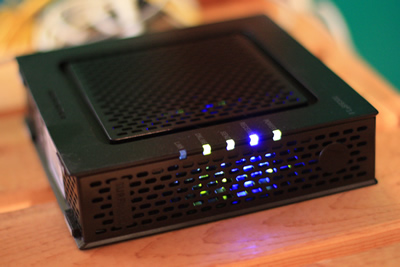 This tiny tutorial will do wonders to your existing cable and DSL modem.