Operating Systems
Windows 8 - Tips for Easy Managing -
 Windows 8
 is with us for a while, and we don't have any doubt that some users have already installed it on their computer as the only operating system. As it usually happens on every new version of Windows coming out
there are a lot of differences between the older Windows and the new ones, users don't know all the possibilities that the new Windows offers. That is why we gathered some useful advice on that theme here.
EZ Macro Not Working in Windows 7? - .
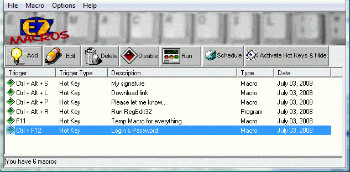
I figure I can't be the only Gamer/coder out there that doesn't still want to run this program. I know there are better Macro creating options out there but the ease and speed/price of this program I've used since 1997 and I'm hoping someone knows how to get it to run in Windows 7.
Banshee 2.4.1 -
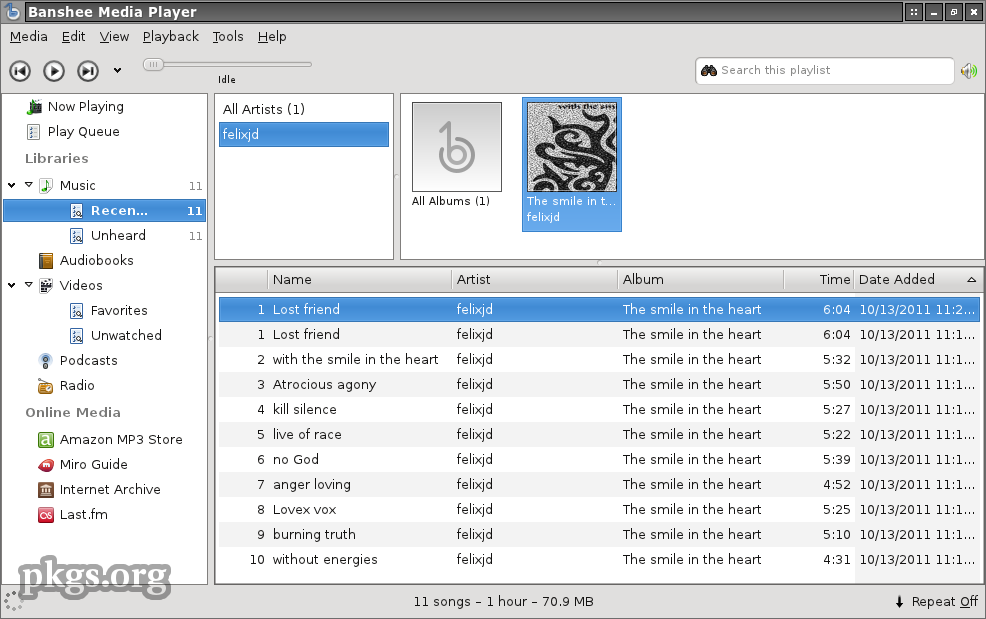
As in today's increasingly demanding customers, tools for music and multimedia are not classic audio and video players, who play them from the hard drive or CD-ROM drive. Despite the intense competition in the market of multimedia players, it is very difficult to choose one which would separate itself in a crowd, but we still think we have a winner.
53 Easiest Windows Tips and Tricks -
This week we'll show you some of the
easiest tricks you can use in
Windows to make your day to day stuff work easier and quicker. Ever wonder how something something can be done using that certain application in
Windows? Well here are 53 of the
easiest tips we could muster we hope that you'll like at least a few of them if not all.

Computer Training Excuses -

You wouldn't go to a doctor who had never been to medical school, or hire a lawyer who never studied law. One side-effect of a world advancing as rapidly as ours is that fields are becoming more and more specialized and narrow. People can no longer get by on general knowledge in their careers, something I found out for myself not too long ago. I'd been out of high school for two years, scraping by on my own and picking up scraps of programming as I went. I saw all of the self-taught programmers breaking into the IT industry, and I hoped to do the same. After all, IT is one of the few industries out there where being creative and a quick learner is more important than a degree.
Encrypt Folders in Windows XP/Vista/7 -
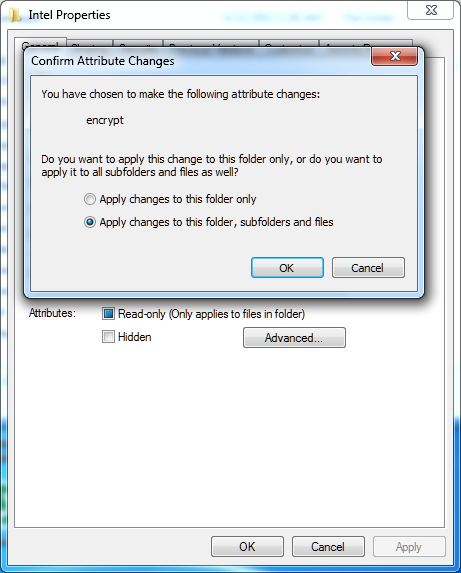
In production environments, where domain-based network infrastructure is established, administrators mostly prefer to use Public Key Infrastructure (PKI) in order to maintain the security of the sensitive information throughout the organization. In such cases Certificate Authority (CA) servers are configured and managed by the security administrators of the organizations. Internal Certificate Authority servers are mostly used when the encryption and decryption process has to take place within the organization only. Organizations that deal with external clients, such as online shopping sites, mostly rely on globally trusted third-party Certificate Authority services.
Windows 7 - Users, Accounts, and UAC -

By now most Windows users are probably familiar with the notion of user accounts and how all users on a PC can have their own individual settings, documents, and other features. In
Windows Vista, Microsoft simplified the user account types down to just two, and locked them down to make the system more secure.
Windows 7 takes this approach a step further and makes it easier to configure how user accounts behave and are protected. And thanks to features such as User Account Control, Parental Controls, and Windows Live Family Safety, Windows 7 is not only more secure than
previous Windows versions, but also easier to configure from a user account perspective. This tutorial describes these features and explains how they can be put to the best possible use.
PowerShell: Windows Command Line on Speed -

Who needs another shell? Unlike the
Unix world,
Windows hasbeen pretty consistent with the shell environment. First there was
MS-DOS (
COMMAND.COM) and later
Windows NT (
CMD.EXE). You can actually still get to
COMMAND.COM if you really, really want to. But for all intents and purposes, these have been the only two shells Windows users have ever known.
Microsoft wants to change that. When .Net was announced in 2000, Microsoft promised everything would one day be .Net. Unfortunately, Microsoft stuck the .Net name on things that were not .Net at all, such as Passport.Net which had no managed code in it at all.
Batch Scripting on Windows 7 -
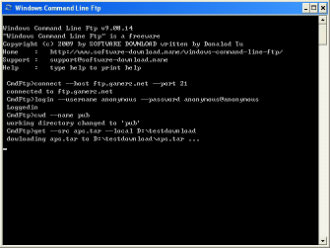
There are numerous reasons that
batch scripting can help users get a more full experience out of
Microsoft Windows 7. They can be used to automate tasks just as easily as they can contain
long commands that are not easy to work around. By starting with more simple models, a programmer can usually get the feel for what
batch scripts are supposed to look like. That being said, anyone who has some experience with the
command line can essentially take a group of
commands that they've entered and use them as a makeshift
batch script with no further editing.
How to Make Folders Invisible -

There are situations when you have taken pictures, you wrote, downloaded, your secret passwords etc. should not be available to anyone that use or see your computer. Whether it is kids, parents or someone that will temporarily work on your computer,
you have the right for privacy and there are ways to protect your content.
Annoying Gmail Plugin Notice in Chrome -

Couple of days ago my dad asked me to fix his Chrome Web Browser. Being the un-official computer geek, I got on the task. Sure enough, as soon as I logged into Gmail, the Chrome notice came informing me to download a plugin. The exact words were
"an additional plugin is required to display some elements". As soon as I clicked on the install plug-in button, the notice went away and nothing seemed to happen. For some odd reason, I was content assuming that all is done.
How to Create Password Reset Disks -
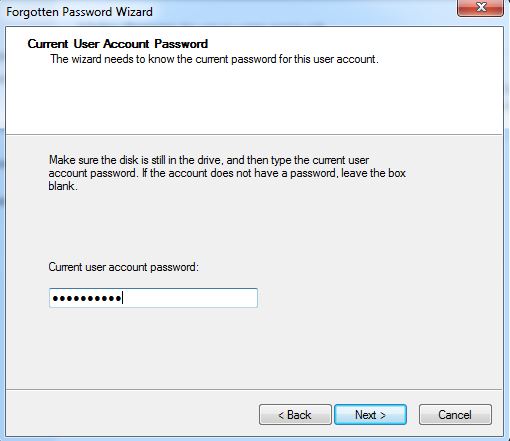
A password reset disk is removable media (mostly the floppy disk) that stores a file that is used to reset the passwords of the user accounts in the operating systems in case users forget them. Creation of a password reset disk is a one-time process and the reset disks can be used multiple times. If users try to create another password reset disk, the older reset disk becomes invalid and therefore it becomes unusable. Nowadays, since floppy disks do not exist anymore, Microsoft Windows 7 and above operating systems allow users to use the USB drives to create password reset disks.
Windows 8 Makes Computing A Snap -

The public is buzzing about the latest
release of Windows 8. This release contains over 300 new features that are sure to please. While it is just in preview mode for developers only, the intention is to keep tweaking this version of Windows until it is perfect. Microsoft makes big promises that this version will be bigger and better than before, but just what is so great about this version of Windows? For starters,
Windows 8 can be used on both PC's and ARM tablets. Because of new capabilities that include the touch screen ability,
Windows 8 can be used on laptops, tablets, even the screens that require high def.
Getting Started with WAMP -

The tutorial answers many common questions people have about WAMP. The ultimate goal of this tutorial is to help you determine if WAMP is the solution you are looking for by providing the advantages and disadvantages of WAMP. WAMP is a powerful backend web development and hosting environment integrated from Apache, MySQL and PHP. Using Apache as a web server, MySQL as a database server, and PHP as a server side script engine, WAMP controls all these components using an intuitive interface.
Disabling / Enabling Network Adapter -
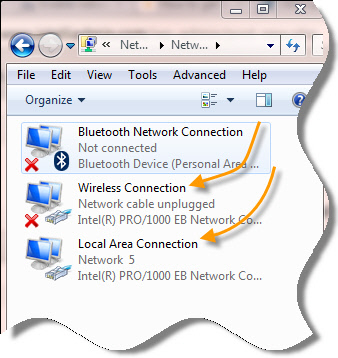 Did you recently find out that after your PC starts up fresh, your internet doesn't work? So you probably tried everything and the only thing that seems to work is to disable the "Local Area Connection" (adapter), and then to enable it back again. At least that's what happened to me.
I've had this problem for almost a year now but I finally want it stop. All the resources online tell me that it's probably my network driver that may need an update. Well, all my drivers are updated, and the problem still remains. Now What? Okay, I'll be honest... I don't know why it happens but 1 out of every 10 or 12 PC's will come across this problem.
How to Drag an off-Screen Window Back to the Desktop -

...the
display settings were displayed... on the
TV screen. Which I couldn't see. A nice little catch-22 there. Not to worry, there is a solution. For applications that do not show up in the taskbar. The desktop settings window does not show up in the taskbar, so you can't do it as described above. Here's what to do.
Specify Users' Logon Time in Windows -
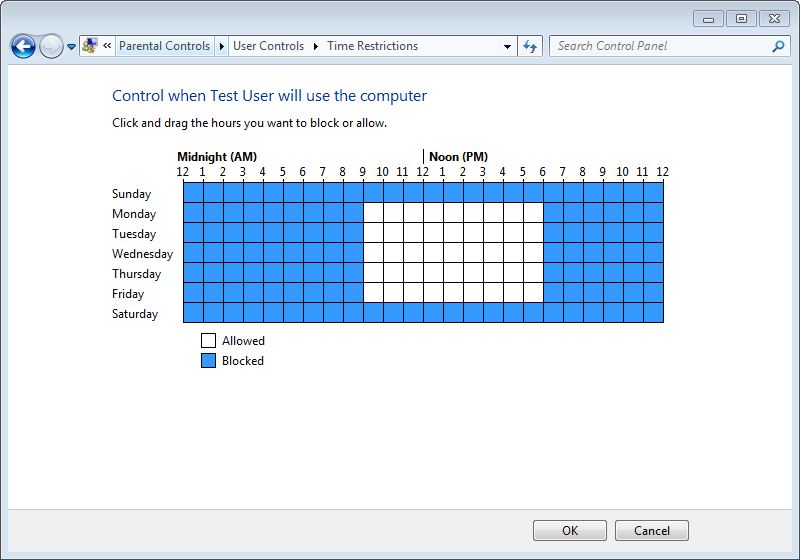
Logon time is the duration between which the operating system allows user accounts to logon to the computer. Logon time can be configured on the operating system only by the administrators of the computer. User accounts that belong to non-admin groups cannot modify or define the logon time and are only allowed to logon to the computer at the times specified for them by the administrators.
Windows 7: 7 Reasons it's the Coolest Yet -

If you're one of the squillions of people who think
Windows Vista's numerous and incredible improvements over
Windows XP are ace, that it's worth every penny, that it's everything it promised to be and more, then go back to the universe you came from, you don't belong here! If, however, you are not a space alien from an alternate dimension, here are 7 reasons why you might think
Windows 7 is the coolest Windows... evah.
LiLi USB Creator 2.8 -
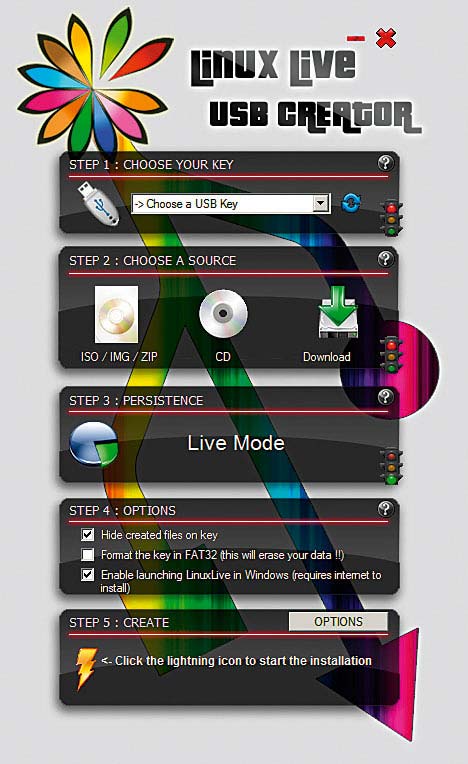 The advantages of a USB flash memory
 over a CD or DVD are obvious and indisputable. The speed and efficiency of data manipulation, and the ever growing capacity, with the constant drop of prices made the popular flashes became the integral part of everybody's personal pocket inventory. When you add the fact that most new computers have the option to boot from transportable media, it is completely logical that this method will become popular and almost a default way to start live systems.
Allow or Deny Rated Games in Windows OS -
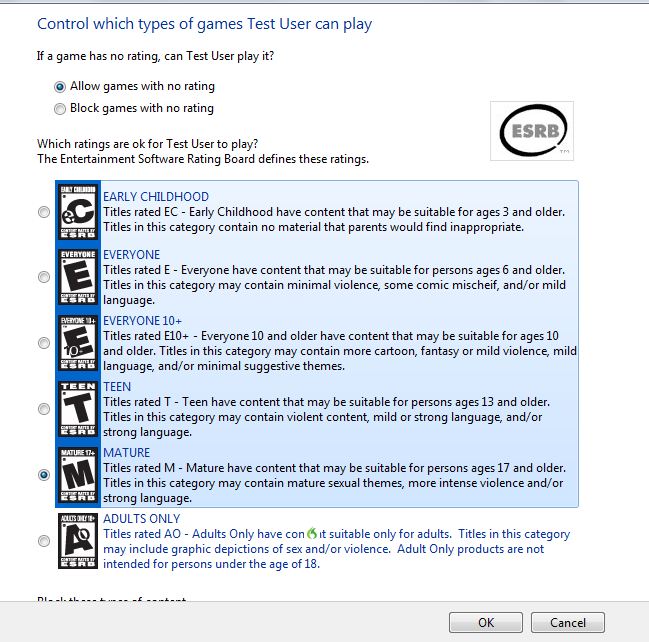
There are many people around the globe who love to play computer games and therefore they either download the games of their choices or they purchase them from the local computer shops. People play games according to their choices and interests where the games may be simple racing games or can also be strategy oriented games with lots of violence and bloodshed. There are also games that are counted under Adults Only category and which are not considered appropriate for the people who are below a certain age.
What are Operating systems? -
The way that computers work is that they use something called an
Operating System, basically a platform in the form of a low level software which enables programers and other people to make other, more complex programs. A common misconception is that OS (operating system) software runs only on computers, but the truth is that it runs on phones, routers and other network devices.
Differences Between Linux And Windows -
This article will discuss the differences between the Linux and Windows operating software's; we discuss some of the pro's and con's of each system. From this point forward we will discuss some of the more prominent ways in which Linux deferrers from Windows.
How to Unlock Your Computer if You Lost Your Password -
 Using the reset a password disc
 is the right solution if you have prepared before, but what happens if you didn't take the needed steps before you have lost your password? If this is truly the case, you have to use a special program that will enable unlocking your operating system.
The best free option is Ophcrack, a program that guesses the code by using a special program called "
the rainbow table".
Compressing Files in Windows to Save Disk Space -
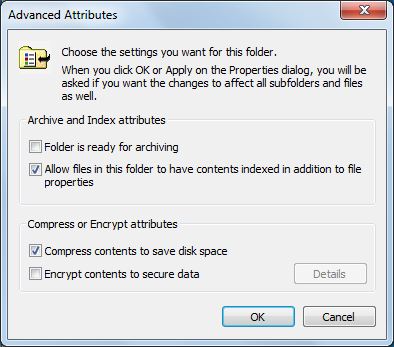
Almost all computer users, whether in homes or in organizations, always consider about the disk space that data occupies and therefore they keep on deleting files on a regular basis. Because of limited storage capacity, especially in the computers used at homes, many times users are forced to delete the files which they do not intend to and they delete them quite unwillingly. In order to avoid facing these situations users either store data on the DVDs or sometimes they use file compression applications to compress files which remarkably reduce their sizes, hence freeing decent amount of space in the hard disk drives.
How to Deal With Stresses & Anxieties in Today's Computer Industry -

Sometimes, we get stressed when everything happens all at once. When this happens, a person should take a deep breath and try to find something to do for a few minutes to get their mind off of the problem. A person could take a walk, listen to some music, read the newspaper or do an activity that will give them a fresh perspective on things.
Milouz Market -
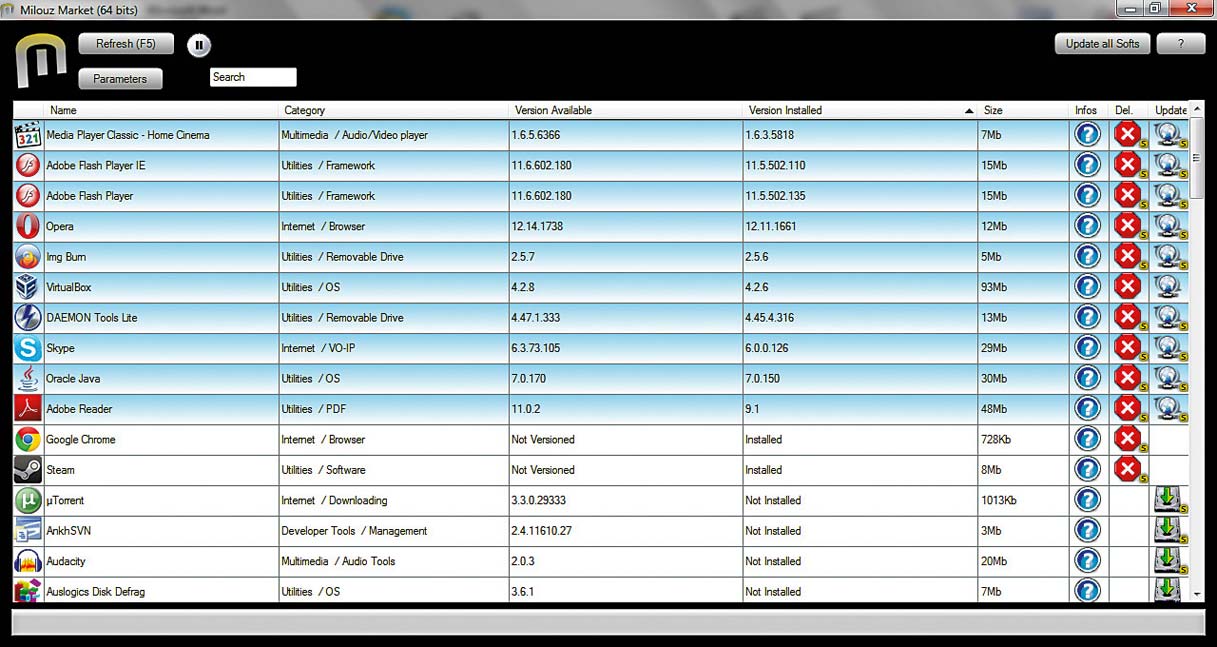
The first thing you will say when you start Milouz Market is "God, how ugly is this!". Really, the author of the program seems to have completely disregarded the visual side of his offspring and trapped it somewhere in the 90'. A bulky table, large icons without applied means for polishing, badly chosen colors...
WinMetro Beta -

We are bothered that there is no start button in the Windows 8 - we are looking for a way to return it. The Metro Start screen terrifies us and we don't know what do with it - we are looking for a way to avoid it and go directly to the desktop. To transfer the part of the functionality of the Metro interface in older versions of Windows? That sounds like a good idea for an experiment, and with the help of the newest product of the Iobit company - the
WinMetro, we will do it.
Short Introduction to Operating Systems -
We at TW were browsing about the web when we stumbled upon Mark's work. Although it's much outdated, it's very fundamental. And please don't let the title fool you. This is not a small short article but a short OS introductory book. An operating system is a layer of software which takes care of technical aspects of a computer's operation. It shields the user of the machine from the low-level details of the machine's operation and provides frequently needed facilities
Ubuntu in Place of Windows -

Most people think of
Linux as something only for geeks and
computer power users. However, we have come to see various flavors of
LinuxOS being sold in major
retail stores in the last few years and we also see a trend being set online. In this article, we're simply going to single out only one of many
Linux flavors known as
Ubuntu.
Introducing Windows 8 -
![Windows Logo]() Windows 8
Windows 8 is the newest
operating system destined to be released from
, and from what they have revealed, they have got a whole lot of changes ready for the end-user. Far from redesigning the system from the ground up, they have settled on pulling inspiration from their popular Windows Phone and from tweaks they have made over the years to the iconic Windows look.
TW Tech Glossary - Misplaced your bible? Well here it is - Tech Glosasary! This truly took a while to complete and should be used by all from beginners to advance techies.
MD5 File Hasher 1.3 -
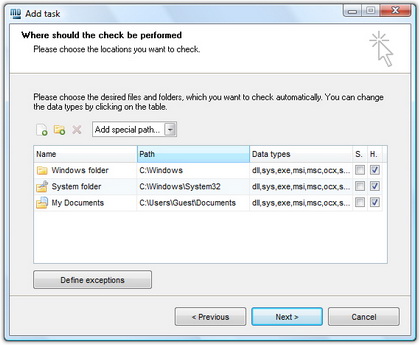
The hash function is a way of mapping a collection of information that can be various lengths in other values of fixed length. The values that the hash function gives are called hash values, codes, sums, checksums or simply hashes.
MD5 is a cryptographic hash algorithm, which means that it takes information of arbitrary length and creates fixed lengths for it, a cryptographic hash value, in a way that any change of data (accidental or on purpose) leads to the change of that value.
How To Recover Deleted Files? -
How many times have we come across TW visitor saying
"How do I recover files" or
"I deleted files from the recycling bin...how do I restore deleted files?"
Well, don't worry and be happy that you came across this little article on TechiWarehouse.Com.
You can often successfully recover deleted files from a PC, it all depends on what has happened since the files were deleted.
Application Restriction through Parental Controls -
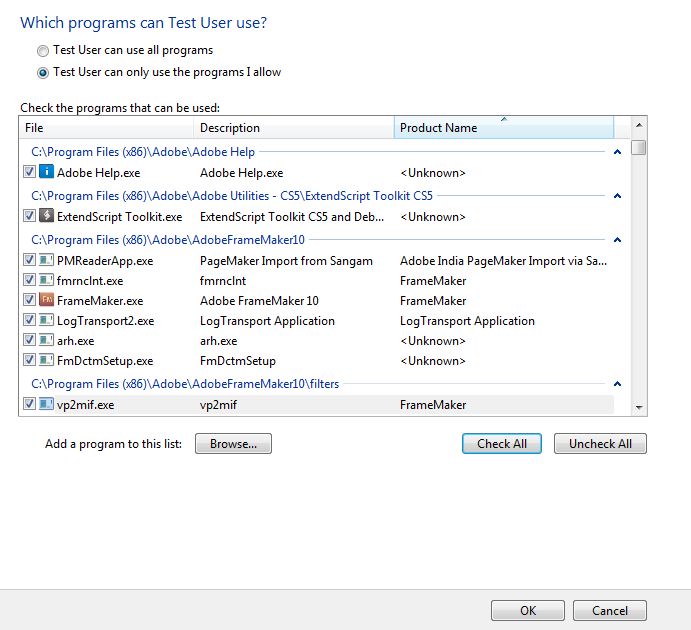
In Microsoft Windows Vista and above operating systems by default all users are allowed to access almost every application that is installed on the computers. That is, no application restriction is applied even for non-administrator user accounts except for the applications for which elevated privileges are mandatory. In home computers this configuration works perfectly well and does not require any alterations anyhow, but in production environments administrators might want to restrict users from using certain applications which they think might not be appropriate when used by standard user accounts.
OpenWith Enhanced 1.10 -
 Windows
 can be a tough patient sometimes, especially when it comes to doing some simple tasks. For example, take the association assigning, ie. connecting two installed programs with certain extensions. Instead of reducing the job to a double click with the mouse, the process often needs to be repeated over and over again, chasing program on the hard drive, and in some cases you are completely left without the help of the system
(exotic extension).
Minimize Skype to Windows 7 System Tray -
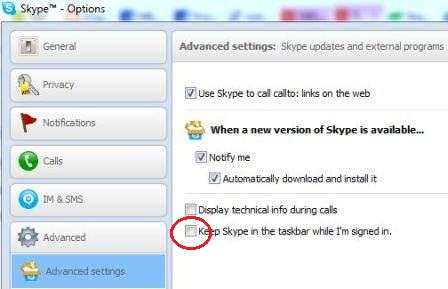
Since the appearance of the Windows 7 and its new design solutions, a lot of habits that we had on computers have been changed. For example, we are not minimizing applications to the system tray, but instead of that most software application are now making their icon on the Windows 7 Taskbar. A few of the latest apps are
Skype, and
Windows Live Messenger.
Winstep Nexus 12 - The Best Docking System for Windows? -

If it is not the best,
Winstep Nexus certainly is placed in the
top three places that currently exist on the market. Not only is it a configurable solution that look really beautiful and refreshes the work surface, but it is a program with
a lot of function.
How to Add Data Decryption Agent (DDA) -
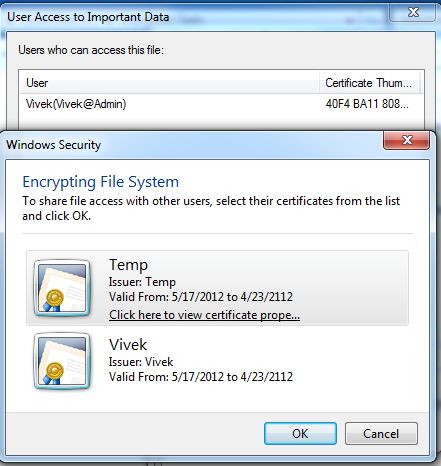
Data Decryption Agents are the user accounts that have been granted permissions to access other users' encrypted contents in case the users who have encrypted the contents are not available. The users who have encrypted their files are, by default, the only ones who can decrypt the files using their keys. In order to provide fault tolerance to the encrypted data, users can promote other trusted user accounts as Data Decryption Agents. User accounts that users plan to promote as Data Decryption Agents must have their own encryption keys which can then be granted permissions by other users so that the users can access to their encrypted information.
FileBot - Multimedia Manager -
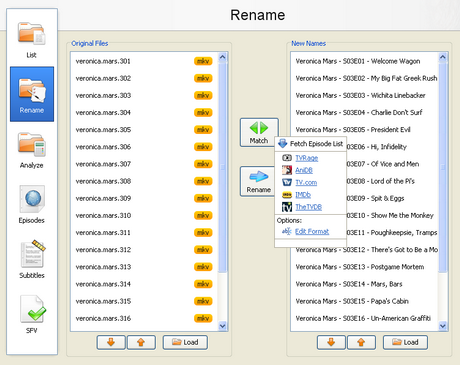
With the increase of capacity in hard drives and the increase of speed of the Internet there is the growth of available multimedia material on users computers. Sometimes it is difficult to find your way in a bunch of files and directories, where there are countless episodes of favorite shows or hours of movies that are waiting for some free time. Although modern file managers have advanced sorting options, renaming or some other searching, they still are not meant for handling a large number of files with multimedia content, that can be pretty diverse.
Toshiba LX830-108 -

The model we've tested comes to us from the Japanese manufacturer Toshiba and brings some interesting but also odd solutions for the balance of performance and functionality. The LX830-108 is placed in thickened monitor case with a diagonal of 23 inches using components designed for portable computers.
How to Configure Win7 to Enable BitLocker without TPM -
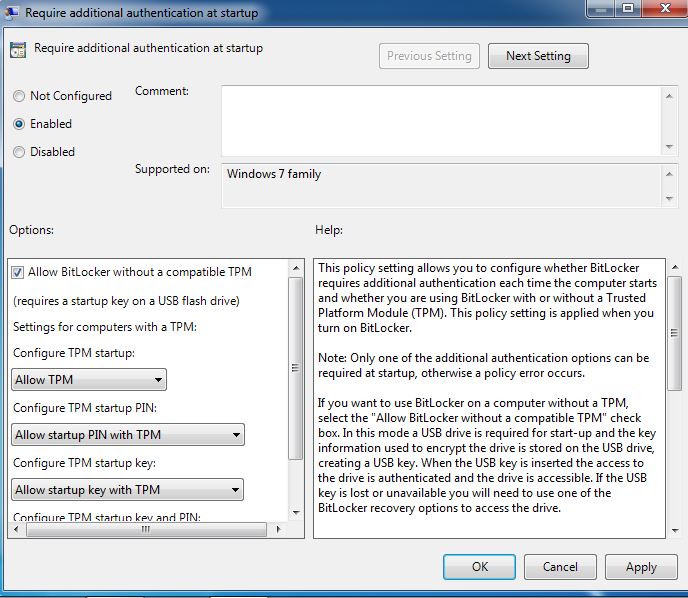
Trusted Platform Module (TPM) is a hardware chip that is integrated in almost all latest computer systems and it stores a key from the key pair that is used to encrypt/decrypt the hard disk drive if the BitLocker drive encryption feature is enabled. In order to enable BitLocker drive encryption on a Windows 7 computer, the computer must have TPM chip present in it and the feature must be enabled in the BIOS settings of the motherboard, failing to which BitLocker drive encryption cannot be enabled on the computer under normal circumstances.
Windows 7 Backup -

With Windows 7, Microsoft expands on the pervasive and reliable backup and restore solutions for both data files and the entire computer that it introduced in Windows Vista. You can use Windows Backup to copy your important files and folders to a safe location or create a system image that can be used later to restore a broken PC. There's even a cool new feature that debuted first in Windows Server that helps you recover old versions of data files if you save the wrong version. Windows 7 has everything you need to make sure your data is safe.
What is Windows 7?
Windows 7 is the latest member of the Windows OS family and improves upon it's predecessor, Vista, in many ways. Windows 7 Ultimate is the most powerful edition of Windows 7 and has several features not included with the Stater, Home Premium, or Professional versions. The overall goal of this new operating system is to provide an aesthetically pleasing user interface, along with easy to use entertainment options, business capabilities, and other extras.
It even allows its users to run a number of Windows XP productivity programs in its Windows XP mode. Also, for the security conscious the option to encrypt your documents with BitLocker or BitLocker To Go is available. As an added bonus users have the flexibility to work in 35 different languages. Windows 7 Ultimate is truly the operating system of choice for all those who require a professional environment to work in that provides ease-of-use, a variety of entertainment options, power, and versatility.
With Windows 7 Ultimate you can easily simplify everyday tasks with new navigation features such as Aero Shake and Snap. Aero shake allows you to focus on one window simply by selecting a window of interest and shaking the mouse back and forth. After this all other windows disappear, to reverse this effect simply repeat the process to make all the windows reappear. Another useful navigation feature is "Snap" which allows you to resize windows for comparison or greater ease-of-use just by dragging them to the edge of the screen. Using this method windows can be made to expand in any direction or even to take up the entire screen. These and other new navigation features included in Windows 7 make it quite simple to use while being productive as well.
The Windows 7 Ultimate OS also markedly improves on Windows Vista in several key departments making it far superior to its predecessor. It takes full advantage of 64-bit PC hardware and memory which is quickly becoming the standard in both the desktop and laptop industry. The OS is also designed to make your PC both sleep and resume quickly so you don't have to wait. It also consumes less system resources when running so that you are provided with a faster system for either work or play.
The best version of the newest operating system on the block has a whole lot to offer. Perfect for handling both professional and everyday tasks Windows 7 seems to have it all. If you're in the market for a new OS and require a blend of power, versatility, and user-friendliness the Ultimate Version of Windows 7 is probably for you. Correcting all the mistakes made in Vista and adding great new features has truly made Windows 7 Ultimate the operating system of choice.
Tips
1. Problem Steps Recorder
As the local PC guru you're probably very used to friends and family asking for help with their computer problems, yet having no idea how to clearly describe what's going on. It's frustrating, but Microsoft feels your pain, and Windows 7 will include an excellent new solution in the Problem Steps Recorder.
When any app starts misbehaving under Windows 7 then all your friends need do is click Start, type PSR and press Enter, then click Start Record. If they then work through whatever they're doing then the Problem Steps Recorder will record every click and keypress, take screen grabs, and package everything up into a single zipped MHTML file when they're finished, ready for emailing to you. It's quick, easy and effective, and will save you hours of troubleshooting time.
2. Burn images
Windows 7 finally introduces a feature that other operating systems have had for years ? the ability to burn ISO images to CDs or DVDs. And it couldn't be much easier to use. Just double-click the ISO image, choose the drive with the blank disc, click Burn and watch as your disc is created.
3. Create and mount VHD files
Microsoft's Virtual PC creates its virtual machine hard drives in VHD files, and Windows 7 can now mount these directly so you can access them in the host system. Click Start, type diskmgmt.msc and press Enter, then click Action > Attach VHD and choose the file you'd like to mount. It will then appear as a virtual drive in Explorer and can be accessed, copied or written just like any other drive.
Click Action > Create VHD and you can now create a new virtual drive of your own (right-click it, select Initialise Disk, and after it's set up right-click the unallocated space and select New Simple Volume to set this up). Again, you'll be left with a virtual drive that behaves just like any other, where you can drag and drop files, install programs, test partitioning software or do whatever you like. But it's actually just this VHD file on your real hard drive which you can easily back up or share with others. Right-click the disk (that's the left-hand label that says "Disk 2" or whatever) and select Detach VHD to remove it.
The command line DISKPART utility has also been upgraded with tools to detach a VHD file, and an EXPAND command to increase a virtual disk's maximum size. Don't play around with this unless you know what you're doing, though ? it's all too easy to trash your system.
4. Troubleshoot problems
If some part of Windows 7 is behaving strangely, and you don't know why, then click Control Panel > Find and fix problems (or 'Troubleshooting') to access the new troubleshooting packs. These are simple wizards that will resolve common problems, check your settings, clean up your system and more.
5. Startup repair
If you've downloaded Windows 7 (and even if you haven't) it's a good idea to create a system repair disc straight away in case you run into problems booting the OS later on. Click Start > Maintenance > Create a System Repair Disc, and let Windows 7 build a bootable emergency disc. If the worst does happen then it could be the only way to get your PC running again.
6. Take control
Tired of the kids installing dubious software or running applications you'd rather they left alone? AppLocker is a new Windows 7 feature that ensures users can only run the programs you specify. Don't worry, that's easier to set up than it sounds: you can create a rule to allow everything signed by a particular publisher, so choose Microsoft, say, and that one rule will let you run all signed Microsoft applications. Launch GPEDIT.MSC and go to Computer Configuration > Windows Settings > Security Settings > Application Control Policies > AppLocker to get a feel for how this works.
7. Calculate more
At first glance the Windows 7 calculator looks just like Vista's version, but explore the Mode menu and you'll see powerful new Statistics and Programmer views. And if you're clueless about bitwise manipulation, then try the Options menu instead. This offers many different unit conversions (length, weight, volume and more), date calculations (how many days between two dates?), and spreadsheet-type templates to help you calculate vehicle mileage, mortgage rates and more.
Don't take any Windows 7 applet at face value, then ? there are some very powerful new features hidden in the background. Be sure to explore every option in all Windows applets to ensure you don't miss anything important.
8. Switch to a projector
Windows 7 now provides a standard way to switch your display from one monitor to another, or a projector ? just press Win+P or run DisplaySwitch.exe and choose your preferred display. (This will have no effect if you've only one display connected.)
9. Get a power efficiency report
If you have a laptop, you can use the efficiency calculator to get Windows 7 to generate loads of useful information about its power consumption. Used in the right way, this can help you make huge gains in terms of battery life and performance. To do this you must open a command prompt as an administrator by typing 'cmd' in Start Search, and when the cmd icon appears, right-click it and choose Run as administrator.
Then at the command line, just type in 'powercfg -energy' (without quotes) and hit Return, and Windows 7 will scan your system looking for ways to improve power efficiency. It will then publish the results in an HTML file, usually in the System32 folder. Just follow the path it gives you to find your report.
10. Understanding System Restore
Using System Restore in previous versions of Windows has been something of a gamble. There's no way of telling which applications or drivers it might affect ? you just have to try it and see.
Windows 7 is different. Right-click Computer, select Properties > System Protection > System Restore > Next, and choose the restore point you'd like to use. Click the new button to 'Scan for affected programs' and Windows will tell you which (if any) programs and drivers will be deleted or recovered by selecting this restore point.
11. Set the time zone
System administrators will appreciate the new command line tzutil.exe utility, which lets you set a PC's time zone from scripts. If you wanted to set a PC to Greenwich Mean Time, for instance, you'd use the command
tzutil /s "gmt standard time"
The command "tzutil /g" displays the current time zone, "tzutil /l" lists all possible time zones, and "tzutil /?" displays details on how the command works.
12. Calibrate your screen
The colours you see on your screen will vary depending on your monitor, graphics cards settings, lighting and more, yet most people use the same default Windows colour profile. And that means a digital photo you think looks perfect might appear very poor to everybody else. Fortunately Windows 7 now provides a Display Colour Calibration Wizard that helps you properly set up your brightness, contrast and colour settings, and a ClearType tuner to ensure text is crisp and sharp. Click Start, type DCCW and press Enter to give it a try.
13. Right-click everything
At first glance Windows 7 bears a striking resemblance to Vista, but there's an easy way to begin spotting the differences ? just right-click things.
Right-click an empty part of the desktop, for instance, and you'll find a menu entry to set your screen resolution. No need to go browsing through the display settings any more.
Right-click the Explorer icon on the taskbar for speedy access to common system folders: Documents, Pictures, the Windows folder, and more.
And if you don't plan on using Internet Explorer then you probably won't want its icon permanently displayed on the taskbar. Right-click the icon, select 'Unpin this program from the taskbar', then go install Firefox, instead.
14. Desktop slideshow
Windows 7 comes with some very attractive new wallpapers, and it's not always easy to decide which one you like the best. So why not let choose a few, and let Windows display them all in a desktop slideshow? Right-click an empty part of the desktop, select Personalise > Desktop Background, then hold down Ctrl as you click on the images you like. Choose how often you'd like the images to be changed (anything from daily to once every 10 seconds), select Shuffle if you'd like the backgrounds to appear in a random order, then click Save Changes and enjoy the show.
|
|
|
|
 Did You Know?

|
|
|
|
|
|

.png) In this guide we will show you how to get rid of unwanted "trash" that keeps piling up when you are using Microsoft Windows.
In this guide we will show you how to get rid of unwanted "trash" that keeps piling up when you are using Microsoft Windows.